> ## Documentation Index
> Fetch the complete documentation index at: https://docs.flashquotes.com/llms.txt
> Use this file to discover all available pages before exploring further.
# Contacts
> Everyone you've quoted or booked, in one place
export const PlusBadge = () =>
Plus
;
## Overview
The Contacts page is your client directory — everyone you've quoted or booked, in one place. New contacts are created automatically when someone submits your [lead intake form](/forms/lead-intake), or you can add them yourself with **New contact**.
Where the [Pipeline](/pipeline) tracks quotes, Contacts tracks people: each contact holds the client's details, every quote and booking tied to them, and your full communication history.
## The contacts table
The table shows each contact's name and company, email and phone (hover to copy either with one click), quote and booking counts, last activity, source, owner, and created date. It's sorted by last activity by default, so the clients you've most recently touched are on top.
* **Search** by name, email, or phone number
* **Filter** by created date range, source, or owner
* **Export CSV** downloads your contacts honoring whatever filters and search are active
Click any row to open the contact's detail page.
## Contact details
Each contact page keeps the client's info in a details panel and organizes everything else into tabs:
* **Activity** — a unified, chronological feed of everything that's happened: notes, emails sent and received, quote status changes, and workflow actions. Skim it to catch up before reaching out — no need to check each tab separately.
* **Quotes** — create and manage quotes for this contact
* **Bookings** — confirmed bookings tied to this contact
* **Emails** — email threads with the contact
* **Notes** — add and search notes about the contact
* **Workflows** — view and manage active workflow enrollments
### Notes
Use notes to log context, follow-up reminders, or anything worth remembering.
1. Open the **Notes** tab and click **Add Note**
2. Write your note using the rich text editor
3. Click **Save**
Pin important notes to keep them at the top of the list, and use the search bar to filter notes by keyword.
### Contact owner assignment
Assign contacts to specific team members for better accountability and follow-up tracking. Open a contact, click **Edit** in the header, and pick a team member as the owner. The owner appears in the contacts table and on [Pipeline](/pipeline) cards, and both pages can filter by owner so each teammate can work their own book.
## Managing quote expiration dates
Admins can change individual quote expiration dates to extend opportunities or accommodate special circumstances.
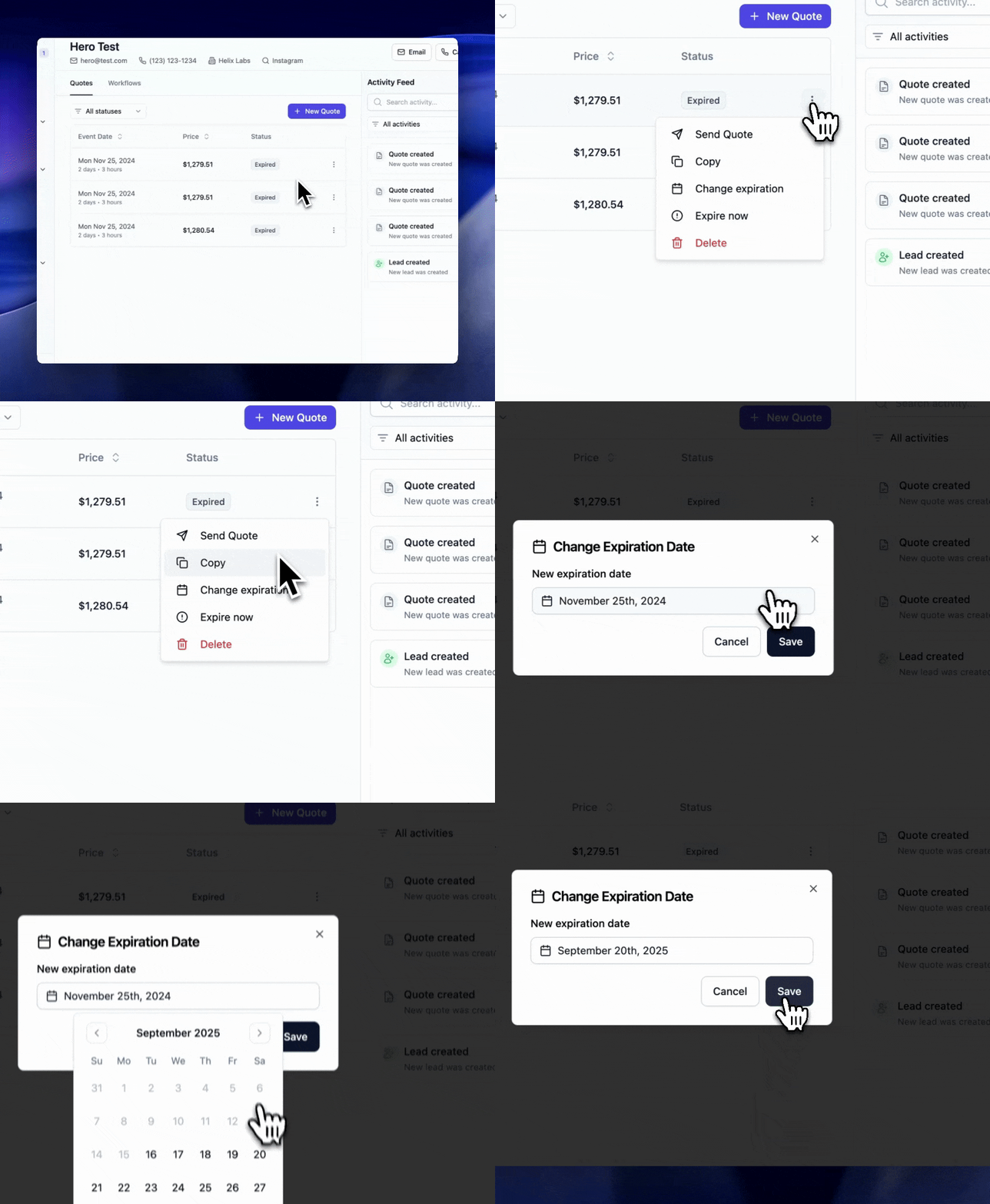 You can modify quote expiration from the contact's **Quotes** tab, the quote edit page, or the quote view page.
* **Extend** a quote that's about to expire while a client decides
* **Reactivate** an expired quote by setting a future date — it becomes bookable again immediately
* **Remove** the expiration entirely for special situations
Expired quotes cannot be booked. Clients see a message prompting them to
request a new quote or contact you directly.
## Best practices
1. Respond to new contacts promptly — sending a quote within the first hour of inquiry dramatically improves your chance of winning the booking
2. Keep contact information current
3. Use notes and the activity feed to track communication history
4. Assign owners so follow-ups never fall through the cracks
## Next steps
* [Work your open quotes in the Pipeline](/pipeline)
* [Create quotes](/contacts/quotes)
* [Send quotes](/contacts/sending-quotes)
You can modify quote expiration from the contact's **Quotes** tab, the quote edit page, or the quote view page.
* **Extend** a quote that's about to expire while a client decides
* **Reactivate** an expired quote by setting a future date — it becomes bookable again immediately
* **Remove** the expiration entirely for special situations
Expired quotes cannot be booked. Clients see a message prompting them to
request a new quote or contact you directly.
## Best practices
1. Respond to new contacts promptly — sending a quote within the first hour of inquiry dramatically improves your chance of winning the booking
2. Keep contact information current
3. Use notes and the activity feed to track communication history
4. Assign owners so follow-ups never fall through the cracks
## Next steps
* [Work your open quotes in the Pipeline](/pipeline)
* [Create quotes](/contacts/quotes)
* [Send quotes](/contacts/sending-quotes)