> ## Documentation Index
> Fetch the complete documentation index at: https://docs.flashquotes.com/llms.txt
> Use this file to discover all available pages before exploring further.
# Booking Flow
> Configure how customers complete their booking after accepting your quote
export const PlusBadge = () =>
Plus
;
## Overview
The Booking Flow controls how customers complete their booking after accepting your quote. Configure which booking form collects customer information and which payment terms apply directly from the quote editor.
 ## How It Works
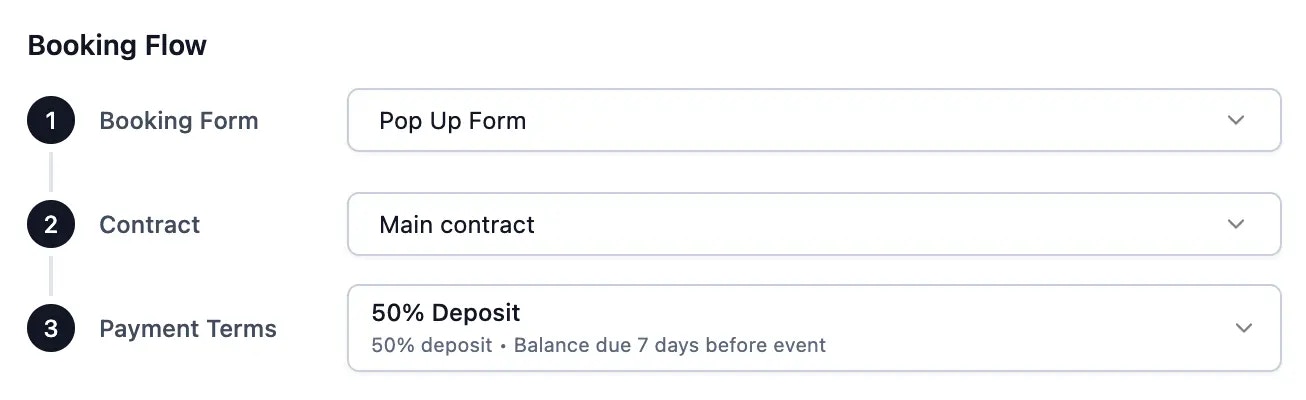
The booking flow consists of three steps:
1. **Booking Form** - The form customers complete when booking (required)
2. **Contract** - Digital contract signing (Plus/Pro)
3. **Payment Terms** - How and when payments are collected
## Payment Terms
Payment terms define your payment schedule for each quote. Select from your configured options or create new terms directly from the quote editor.
### Selecting payment terms
Scroll to the **Booking Flow** section in the quote editor.
Click the Payment Terms dropdown to choose from your configured options.
Click **Add new payment terms** to create custom terms directly from the quote editor.
### Payment Schedule Types
**Best for:** Events that require complete payment upfront
**How it works:**
* Clients pay 100% of the quote total when booking
* No additional payments needed
**Configuration options:**
* No additional configuration needed
* Clients will be charged the full quote amount at booking
**Best for:** Events that require an upfront deposit to secure the booking
**How it works:**
* Clients pay a deposit amount when booking
* Remaining balance is invoiced and due before the event
* Clients can choose to **pay the full balance today** instead of just the deposit
**Configuration options:**
* **Deposit Type:** Choose between:
* **Fixed Amount:** Set a specific dollar amount (e.g., \$500)
* **Percentage:** Set a percentage of the total quote (e.g., 25%)
* **Deposit Amount:** Enter the fixed dollar amount or percentage value
* **Balance Due:** Set when the remaining balance is due (days before/after event)
**Pay full balance option:**
When booking with a deposit schedule, customers see a "Pay full balance today" checkbox on the booking form. Toggling it charges the full invoice amount due in a single transaction — no later balance payment needed.
**Best for:** Corporate clients or situations where payment is handled through traditional invoicing
**How it works:**
* No payment collected through Flashquotes at booking
* Booking is confirmed without payment
* Invoice is generated and sent to the client
**Configuration options:**
* **Invoice Due:** Set when payment is due (days before/after event)
**Best for:** Events where you want to authorize a card for later charges
**How it works:**
* Client's card is authorized but not charged at booking
* Card is charged by you when you're ready to collect payment
* Invoice is generated with the payment due date
**Configuration options:**
* **Invoice Due:** Set when payment is due (days before/after event)
### Editing Payment Terms
Click the **Edit** button next to any payment terms option to modify:
* Payment schedule type
* Deposit amount or percentage
* Invoice due timing
* Set as company default
Changes to payment terms apply to all quotes using those terms.
## Default Payment Terms
Set a default payment terms to automatically apply to all new quotes.
Click the Payment Terms dropdown in any quote's Booking Flow section.
Click **Edit** next to the payment terms you want as default.
Toggle **Set as company default** and save.
Your default payment terms will apply to all new quotes. You can always change the payment terms on individual quotes.
## Using Multiple Payment Terms
Different client types often require different payment terms:
Invoice only with payment due after the event
25-50% deposit required upfront
Full payment upfront
### Common Scenarios
**Standard:** 25% deposit to secure date, balance due 2 weeks before event
**Premium:** 50% deposit for peak season dates
**Standard:** Invoice only, due 30 days after event
**New Clients:** Full payment required for first booking
## Contract
Add digital contracts to your booking flow. Customers review and sign contracts electronically before payment.
### Assigning a contract
1. Click the Contract dropdown in the Booking Flow section
2. Select a contract template
3. Click **Edit** to modify the contract
4. Toggle **Set as default** to auto-assign to new quotes
Contracts appear after customers fill out the booking form but before payment. Customers must complete all signature blocks before proceeding to payment.
Plus subscribers can create up to 2 contract templates. Pro subscribers get unlimited templates. [Learn more about contracts →](/templates/contracts/overview)
## Booking Form
The booking form collects customer information when they book. Select from your configured booking forms or edit them directly from the dropdown.
### Selecting a booking form
* Click the Booking Form dropdown to see available forms
* Forms marked "Default" are automatically selected for new quotes
* Click **Edit** to modify form questions
* Click **Go to forms** to manage all forms
Configure your booking forms in [Forms settings](/forms/booking).
## Best Practices
Use descriptive names that indicate the payment schedule:
* "25% Deposit - Balance Due Before Event"
* "Full Payment Upfront"
* "Corporate Net 30"
* "Card on File - Due Day Before"
* "Payment Terms 1"
* "Option A"
* "New Terms"
Create payment terms that match your common scenarios:
* Regular clients who know your payment terms
* New clients who might need flexible options
* Corporate clients with procurement processes
* Last-minute bookings requiring immediate payment
* Choose your most common payment schedule as the default
* This saves time when creating quotes
* You can always override on individual quotes
* Use larger deposits for expensive events
* Require full payment for last-minute bookings
* Consider card on file for recurring clients
## Troubleshooting
Yes! You can change payment terms on any unsent or sent quote. Navigate to the quote, update the payment terms in the Booking Flow section, and the quote will reflect the new terms.
* For percentage deposits, verify the percentage is entered correctly (e.g., 25 not 0.25)
* Check that the quote total is accurate
* Edit the payment terms to adjust the deposit amount
* Make sure you have at least one payment terms configured
* Check that payment terms aren't deleted
* Try creating a new payment terms from the dropdown
Refunds are processed based on what the client has actually paid, regardless of the original payment terms.
## Next Steps
* [Create quotes](/contacts/quotes)
* [Send quotes](/contacts/sending-quotes)
* [Configure booking forms](/forms/booking)
## How It Works
The booking flow consists of three steps:
1. **Booking Form** - The form customers complete when booking (required)
2. **Contract** - Digital contract signing (Plus/Pro)
3. **Payment Terms** - How and when payments are collected
## Payment Terms
Payment terms define your payment schedule for each quote. Select from your configured options or create new terms directly from the quote editor.
### Selecting payment terms
Scroll to the **Booking Flow** section in the quote editor.
Click the Payment Terms dropdown to choose from your configured options.
Click **Add new payment terms** to create custom terms directly from the quote editor.
### Payment Schedule Types
**Best for:** Events that require complete payment upfront
**How it works:**
* Clients pay 100% of the quote total when booking
* No additional payments needed
**Configuration options:**
* No additional configuration needed
* Clients will be charged the full quote amount at booking
**Best for:** Events that require an upfront deposit to secure the booking
**How it works:**
* Clients pay a deposit amount when booking
* Remaining balance is invoiced and due before the event
* Clients can choose to **pay the full balance today** instead of just the deposit
**Configuration options:**
* **Deposit Type:** Choose between:
* **Fixed Amount:** Set a specific dollar amount (e.g., \$500)
* **Percentage:** Set a percentage of the total quote (e.g., 25%)
* **Deposit Amount:** Enter the fixed dollar amount or percentage value
* **Balance Due:** Set when the remaining balance is due (days before/after event)
**Pay full balance option:**
When booking with a deposit schedule, customers see a "Pay full balance today" checkbox on the booking form. Toggling it charges the full invoice amount due in a single transaction — no later balance payment needed.
**Best for:** Corporate clients or situations where payment is handled through traditional invoicing
**How it works:**
* No payment collected through Flashquotes at booking
* Booking is confirmed without payment
* Invoice is generated and sent to the client
**Configuration options:**
* **Invoice Due:** Set when payment is due (days before/after event)
**Best for:** Events where you want to authorize a card for later charges
**How it works:**
* Client's card is authorized but not charged at booking
* Card is charged by you when you're ready to collect payment
* Invoice is generated with the payment due date
**Configuration options:**
* **Invoice Due:** Set when payment is due (days before/after event)
### Editing Payment Terms
Click the **Edit** button next to any payment terms option to modify:
* Payment schedule type
* Deposit amount or percentage
* Invoice due timing
* Set as company default
Changes to payment terms apply to all quotes using those terms.
## Default Payment Terms
Set a default payment terms to automatically apply to all new quotes.
Click the Payment Terms dropdown in any quote's Booking Flow section.
Click **Edit** next to the payment terms you want as default.
Toggle **Set as company default** and save.
Your default payment terms will apply to all new quotes. You can always change the payment terms on individual quotes.
## Using Multiple Payment Terms
Different client types often require different payment terms:
Invoice only with payment due after the event
25-50% deposit required upfront
Full payment upfront
### Common Scenarios
**Standard:** 25% deposit to secure date, balance due 2 weeks before event
**Premium:** 50% deposit for peak season dates
**Standard:** Invoice only, due 30 days after event
**New Clients:** Full payment required for first booking
## Contract
Add digital contracts to your booking flow. Customers review and sign contracts electronically before payment.
### Assigning a contract
1. Click the Contract dropdown in the Booking Flow section
2. Select a contract template
3. Click **Edit** to modify the contract
4. Toggle **Set as default** to auto-assign to new quotes
Contracts appear after customers fill out the booking form but before payment. Customers must complete all signature blocks before proceeding to payment.
Plus subscribers can create up to 2 contract templates. Pro subscribers get unlimited templates. [Learn more about contracts →](/templates/contracts/overview)
## Booking Form
The booking form collects customer information when they book. Select from your configured booking forms or edit them directly from the dropdown.
### Selecting a booking form
* Click the Booking Form dropdown to see available forms
* Forms marked "Default" are automatically selected for new quotes
* Click **Edit** to modify form questions
* Click **Go to forms** to manage all forms
Configure your booking forms in [Forms settings](/forms/booking).
## Best Practices
Use descriptive names that indicate the payment schedule:
* "25% Deposit - Balance Due Before Event"
* "Full Payment Upfront"
* "Corporate Net 30"
* "Card on File - Due Day Before"
* "Payment Terms 1"
* "Option A"
* "New Terms"
Create payment terms that match your common scenarios:
* Regular clients who know your payment terms
* New clients who might need flexible options
* Corporate clients with procurement processes
* Last-minute bookings requiring immediate payment
* Choose your most common payment schedule as the default
* This saves time when creating quotes
* You can always override on individual quotes
* Use larger deposits for expensive events
* Require full payment for last-minute bookings
* Consider card on file for recurring clients
## Troubleshooting
Yes! You can change payment terms on any unsent or sent quote. Navigate to the quote, update the payment terms in the Booking Flow section, and the quote will reflect the new terms.
* For percentage deposits, verify the percentage is entered correctly (e.g., 25 not 0.25)
* Check that the quote total is accurate
* Edit the payment terms to adjust the deposit amount
* Make sure you have at least one payment terms configured
* Check that payment terms aren't deleted
* Try creating a new payment terms from the dropdown
Refunds are processed based on what the client has actually paid, regardless of the original payment terms.
## Next Steps
* [Create quotes](/contacts/quotes)
* [Send quotes](/contacts/sending-quotes)
* [Configure booking forms](/forms/booking)