> ## Documentation Index
> Fetch the complete documentation index at: https://docs.flashquotes.com/llms.txt
> Use this file to discover all available pages before exploring further.
# Event Brief
> Learn how to create and manage comprehensive event briefs with customizable checklists for your team
## Overview
The Event Brief serves as the day-of-service documentation for your team. It provides a shareable, dynamic document that contains all necessary information for successful event execution, accessible via a public link without requiring a Flashquotes account.
Each event brief includes customizable checklists that ensure your staff knows exactly what to pack, what to do, and how to put on a great event. You can create multiple checklists per event and save them as templates to reuse across future events - mixing and matching based on event type, services offered, or team roles.
## Brief Structure
### Section Organization
Includes:
* Staff assignments with contact information
* Required equipment list
* Event description
* Indoor/outdoor status
* Dress code requirements
* Customizable checklist tasks
Special add-ons appear as prominent yellow banners to ensure visibility.
Contains:
* Venue address with Google Maps integration
* Estimated drive time
* Site contact information
* Parking instructions
* Loading dock details
* Building access information
Details:
* Setup duration
* Tip jar policies
* Gratuity information
* Customizable setup checklist tasks
* Equipment placement
* Venue requirements
Covers:
* Service start/end times
* Cart presentation standards
* Disposal policies
* Service extension procedures
* Guest interaction guidelines
* Customizable service checklist tasks
Includes:
* Cleanup duration
* Departure timeline
* Customizable cleanup checklist tasks
* Equipment breakdown procedures
Contains:
* Return navigation
* Expected drive time
* Customizable return checklist tasks
* Restocking procedures
* Equipment maintenance tasks
## Checklist Management
### Creating Checklists
**Plus Subscription Features**: Multiple checklists per event and template management require a Flashquotes Plus subscription. Free plans include one checklist per event with basic task management.
Each event brief can have multiple checklists to organize tasks for different services and staff. You have three ways to create checklists:
Creates a new checklist with standard tasks:
1. Navigate to the Event Brief tab
2. Click "Add checklist"
3. Select "Add default checklist"
4. The system creates a checklist with predefined tasks for each section
Default checklists include common tasks like equipment checks, setup procedures, and cleanup items.
Duplicate a checklist from the current event:
1. Click "Add checklist"
2. Choose from the "Copy event checklist" section
3. Select the checklist you want to duplicate
4. A new checklist is created with all the same tasks
This is perfect when you need variations of the same checklist or want to create specialized versions for different team members.
Use a saved template to create a checklist:
1. Click "Add checklist"
2. Browse the "Add from template" section
3. Select your desired template
4. The checklist is created with all template tasks
Templates are reusable across all events and can be managed company-wide.
### Managing Checklist Tasks
Customize tasks within each checklist section:
* Click on any task to edit its description
* Use markdown formatting for rich text (links, bold, italic)
* Press Enter to save or Escape to cancel
* Tasks automatically sync across all viewers
Tasks are organized into six sections: Prep & Loading, Travel to Event, Setup, Service, Post-Event Cleanup, and Return & Unload.
Drag and drop to reorder tasks:
* Hover over a task to see the drag handles
* Click and drag to reorder within a section
* Changes are saved automatically
* Order is maintained for all staff viewing the brief
Add custom tasks to any section:
1. Navigate to the desired section
2. Click "Add task"
3. Enter your task description
4. Use markdown for formatting if needed
5. Press Enter to save
Add specific instructions, equipment checks, or client-specific requirements as custom tasks.
Delete unnecessary tasks:
* Click "Delete" next to any task
* Confirm the deletion
* Task is immediately removed for all viewers
Deleted tasks cannot be recovered. Consider editing instead of deleting if you might need the task later.
Flashquotes uses a rich text editor (TipTap) for content formatting throughout the platform. This provides a user-friendly, visual editing experience similar to Google Docs or Microsoft Word.
Flashquotes does not support markdown syntax. Content is created and edited using the visual rich text editor interface.
## Available Formatting Options
The rich text editor provides standard formatting tools:
### Text Styling
* **Bold text** - Use the bold button in the toolbar
* *Italic text* - Use the italic button in the toolbar
* Underlined text - Use the underline button in the toolbar
### Lists and Structure
* Bulleted lists
* Numbered lists
* Headings (H1, H2, H3)
* Paragraphs with proper spacing
### Links and Media
* Hyperlinks - Select text and use the link button
* Email links
* Image insertion (where supported)
## Where You'll Use the Rich Text Editor
The rich text editor appears in several areas of Flashquotes:
* Quote descriptions and notes
* Email templates and content
* Form instructions and help text
* Invoice notes and terms
## Tips for Best Results
* Use the formatting toolbar buttons rather than trying to type markdown syntax
* Preview your content before saving to ensure it displays correctly
* Keep formatting simple and professional for customer-facing content
* Use headings to organize longer content sections
If you're familiar with markdown and prefer that workflow, the rich text editor may feel different initially. However, it provides better WYSIWYG editing for most users.
### Template Management
Save successful checklists as reusable templates:
1. Select the checklist you want to save
2. Click "Checklist options" → "Save as template"
3. Enter a descriptive template name
4. Click "Save Template"
Use descriptive names like "Wedding Reception Setup" or "Corporate Event Cleanup" to make templates easy to find.
Edit and organize your template library:
* Templates are available company-wide
* Delete outdated templates by clicking the trash icon
* Edit your default checklist template from "Checklist options" → "Edit defaults"
* Templates sync across all team members
Deleting a template doesn't affect checklists already created from that template.
Templates benefit your entire organization:
* All team members can use company templates
* Standardize procedures across events
* Maintain consistency in service quality
* Update templates to improve all future events
### Multiple Checklist Workflow
Multiple checklists require a Flashquotes Pro subscription. This feature allows you to create role-specific or service-specific task lists within a single event.
Use multiple checklists to organize complex events:
* Create role-specific checklists (e.g., "Lead Barista", "Setup Crew")
* Create service-specific checklists (e.g., "Drip Coffee Bar", "360 Photo booth")
* Use descriptive names for easy identification
* Click checklist names to switch between them
Rename checklists for better organization:
1. Click on the selected checklist name
2. Edit the name inline
3. Press Enter to save or Escape to cancel
4. Names update immediately for all viewers
Use names like "Barista Tasks", "Manager Checklist", or "Premium bar cart" to clearly identify each checklist's purpose.
Delete unnecessary checklists:
1. Select the checklist to delete
2. Click "Checklist options" → "Delete checklist"
3. Confirm the deletion
You cannot delete the last remaining checklist. Each event brief must have at least one checklist.
## Gratuity Visibility
You can control whether staff see the pre-paid gratuity amount on event briefs. By default, the gratuity is shown. Hiding it is useful if you'd rather not disclose tip amounts to staff before an event.
This is a company-level setting — changing it affects **all current and future event briefs** immediately.
 ### How to show or hide gratuity
1. Open any event from the **Events** page
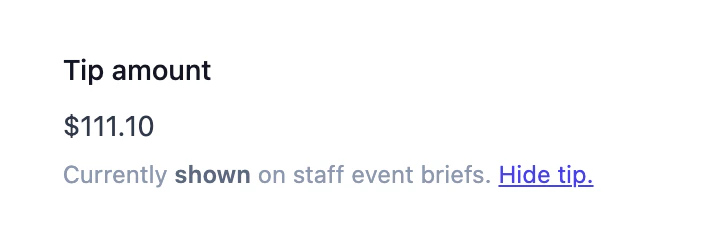
2. Scroll to the **Tip amount** field in the event details panel
3. Below the tip amount, you'll see a status line — *Currently shown on staff event brief* or *Currently hidden* — with a toggle link
4. Click **Hide tip** or **Show tip**
5. Confirm the change in the dialog
When hidden, the pre-paid gratuity is not shown on the event brief.
This setting applies to your entire company. There is no way to hide gratuity for specific events only.
## Sharing and Access
### Distribution Options
Share the event brief:
1. Navigate to the Event Brief tab
2. Copy the "Share link" and send it to your team
Staff can access the brief using the link without logging into Flashquotes
The event brief automatically updates when you modify:
* Timeline changes
* Staff assignments
* Special instructions
* Contact information
* Add-on services
## Best Practices
### Event Brief Management
1. Share briefs well in advance of event day
2. Verify all sections are complete
3. Double-check contact information
4. Update special instructions as needed
5. Confirm staff have accessed the brief
6. Use [markdown formatting](#enhanced-tasks-with-markdown) in tasks for better clarity and organization
### Checklist Best Practices
* Use clear, actionable language for tasks
* Include specific quantities and measurements
* Add time estimates for complex tasks
* Reference equipment by specific names or model numbers
* Include safety reminders and protocols
* Use [markdown formatting](#enhanced-tasks-with-markdown) to add links, emphasis, and structure to tasks
* Create role-specific checklists for different team members
* Use consistent naming conventions across events
* Regularly review and update templates based on team feedback
* Share successful checklist configurations with your team
* Save successful checklists as templates after events
* Update templates based on lessons learned
* Remove outdated or unused templates regularly
* Gather feedback from staff on checklist effectiveness
* Review all checklists before sharing the event brief
* Test templates with new events to ensure completeness
* Keep backup copies of critical checklist templates
* Maintain a master template for standard events
## Next Steps
After creating event briefs with checklists:
* [Review timeline details](/events/timeline)
* [Manage staff assignments](/staff)
* [Configure task defaults](/settings/tasks)
* Monitor brief access and checklist completion
* Gather team feedback on checklist effectiveness
* Save successful checklists as templates for future events
### How to show or hide gratuity
1. Open any event from the **Events** page
2. Scroll to the **Tip amount** field in the event details panel
3. Below the tip amount, you'll see a status line — *Currently shown on staff event brief* or *Currently hidden* — with a toggle link
4. Click **Hide tip** or **Show tip**
5. Confirm the change in the dialog
When hidden, the pre-paid gratuity is not shown on the event brief.
This setting applies to your entire company. There is no way to hide gratuity for specific events only.
## Sharing and Access
### Distribution Options
Share the event brief:
1. Navigate to the Event Brief tab
2. Copy the "Share link" and send it to your team
Staff can access the brief using the link without logging into Flashquotes
The event brief automatically updates when you modify:
* Timeline changes
* Staff assignments
* Special instructions
* Contact information
* Add-on services
## Best Practices
### Event Brief Management
1. Share briefs well in advance of event day
2. Verify all sections are complete
3. Double-check contact information
4. Update special instructions as needed
5. Confirm staff have accessed the brief
6. Use [markdown formatting](#enhanced-tasks-with-markdown) in tasks for better clarity and organization
### Checklist Best Practices
* Use clear, actionable language for tasks
* Include specific quantities and measurements
* Add time estimates for complex tasks
* Reference equipment by specific names or model numbers
* Include safety reminders and protocols
* Use [markdown formatting](#enhanced-tasks-with-markdown) to add links, emphasis, and structure to tasks
* Create role-specific checklists for different team members
* Use consistent naming conventions across events
* Regularly review and update templates based on team feedback
* Share successful checklist configurations with your team
* Save successful checklists as templates after events
* Update templates based on lessons learned
* Remove outdated or unused templates regularly
* Gather feedback from staff on checklist effectiveness
* Review all checklists before sharing the event brief
* Test templates with new events to ensure completeness
* Keep backup copies of critical checklist templates
* Maintain a master template for standard events
## Next Steps
After creating event briefs with checklists:
* [Review timeline details](/events/timeline)
* [Manage staff assignments](/staff)
* [Configure task defaults](/settings/tasks)
* Monitor brief access and checklist completion
* Gather team feedback on checklist effectiveness
* Save successful checklists as templates for future events