> ## Documentation Index
> Fetch the complete documentation index at: https://docs.flashquotes.com/llms.txt
> Use this file to discover all available pages before exploring further.
# SMS Opt-in Collection
> Configure SMS consent collection in your lead intake forms
## Overview
Many CRMs and SMS automation tools require explicit consent before sending text messages. Flashquotes helps you capture that consent during lead intake, keeping you compliant while expanding your communication channels.
 ## Setup
1. Open your lead intake form editor
2. Click **Add question** on any page
3. Select **SMS Opt-in** from Connected Questions
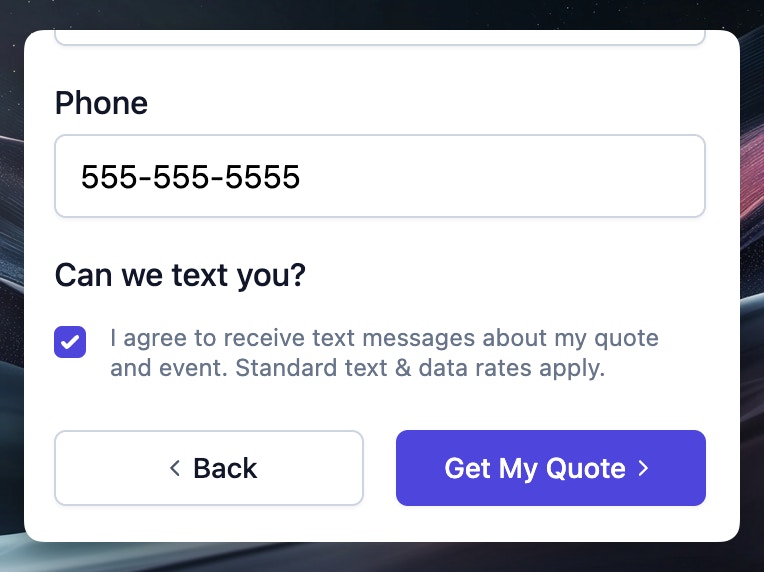
The question is automatically placed on the Contact Details page (the page with your phone number field). A checkbox appears asking "Can we text you?" with customizable consent language.
SMS opt-in requires a phone number field on your form. If you don't have one, the question will be added to your selected page instead.
## Customization
Select the SMS Opt-in question to customize:
* **Question title** - Change "Can we text you?" to match your brand voice
* **Consent text** - Update the acknowledgement checkbox text for compliance
## Contact Management
Contacts who opt in display a green "SMS" badge next to their phone number. This makes it easy to identify contacts who can receive text messages.
## Removing SMS Opt-in
To remove SMS opt-in from your form, click the kebab menu (⋮) on the SMS Opt-in question and select **Delete**.
## Setup
1. Open your lead intake form editor
2. Click **Add question** on any page
3. Select **SMS Opt-in** from Connected Questions
The question is automatically placed on the Contact Details page (the page with your phone number field). A checkbox appears asking "Can we text you?" with customizable consent language.
SMS opt-in requires a phone number field on your form. If you don't have one, the question will be added to your selected page instead.
## Customization
Select the SMS Opt-in question to customize:
* **Question title** - Change "Can we text you?" to match your brand voice
* **Consent text** - Update the acknowledgement checkbox text for compliance
## Contact Management
Contacts who opt in display a green "SMS" badge next to their phone number. This makes it easy to identify contacts who can receive text messages.
## Removing SMS Opt-in
To remove SMS opt-in from your form, click the kebab menu (⋮) on the SMS Opt-in question and select **Delete**.