> ## Documentation Index
> Fetch the complete documentation index at: https://docs.flashquotes.com/llms.txt
> Use this file to discover all available pages before exploring further.
# Invoices
> Learn how to create, manage, and track invoices and payments in Flashquotes
## Overview
The Invoices section in Flashquotes provides comprehensive tools for managing your billing and payments. Integrated with Stripe, it offers features for creating invoices, processing payments, handling refunds, and generating financial reports.
## Dashboard Overview
The invoice dashboard displays:
* Total unpaid invoices
* Overdue invoices count
* Total payments received (last 30 days)
* Payment status summaries
Filter and search your invoices from the dashboard:
* **Status filters**: Select one or more statuses — Open, Pending, Paid, Overdue, or Voided
* **Due date range**: Narrow results to a specific date window
* **Full-text search**: Search across invoice details to find what you need fast
* **Sortable columns**: Click any column header to sort ascending or descending
Filters persist while you work, so you won't lose your view when switching between invoices.
Export your invoices list to a spreadsheet for reporting or reconciliation:
1. Apply any filters you want — only filtered results are exported
2. Click **Export CSV**
3. Choose which columns to include
4. Download and open in Excel, Google Sheets, or any spreadsheet tool
Filter by status or date range before exporting to get exactly the data you need.
## Invoice Management
### Creating and Editing Invoices
Customize invoices with:
* Entity information
* Email recipients
* Due dates
* Tax rates
* Purchase order numbers
* Customer notes
* Line item tax settings
* Custom pricing
* Discounts
Modify existing invoices by:
* Adding new services
* Adjusting quantities
* Updating pricing
* Including additional line items
Changes can be made even after the initial booking is confirmed.
### Invoice Reminders
Flashquotes offers tools to remind customers about their outstanding invoices:
* Automatic email reminders on a predefined schedule
* Manual one-off reminder emails
* Customer payment links accessible from confirmation pages
For detailed information on setting up and using invoice reminders, see the
[Invoice Reminders](/invoices/reminders) page.
## Payment Processing
### Payment Breakdown
The invoice view displays a detailed breakdown of all payments made toward the invoice:
* **Payment history**: Each payment shows the date, method, and amount paid
* **Card details**: Stripe payments display the card brand and last 4 digits (e.g., Visa •••• 4242)
* **Payment status**: Clearly distinguishes between pending and completed payments
* **Receipt links**: Payments made through Stripe include a clickable receipt link — click the payment amount to view the Stripe receipt
* **Refunds**: Refunded amounts appear in the breakdown with negative values
The payment breakdown is also included when customers download or print the invoice PDF, making it easy for them to maintain records.
### Payment Options
Accept payments through:
* Stripe Link (one-click payments)
* Credit/debit cards
* Stripe Bank Transfer
* Manual payment recording
* Scheduled payments
Bank transfers do not settle immediately and show pending status while processing
Record payments received through:
* Check
* Bank transfer
* Cash
* Other
You can add a partial invoice payment by clicking the `Add Installment` button in the invoice *Payment Schedule* table. The table shows all existing payments alongside future expected payments, including the remaining balance, so you always have a complete picture of the payment timeline.
Scheduled installments will then be available for customers to select and pay from the invoice payment page. If they'd rather, customers can opt to pay the remaining balance.
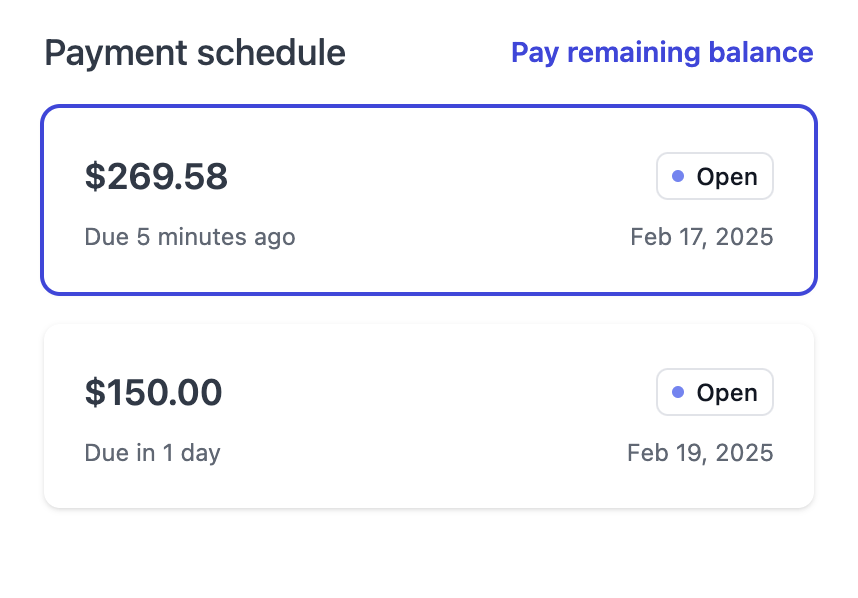 Use payment installments to easily allow customers to make partial payments on their invoices.
For comprehensive payment terms configuration including deposits, invoice due dates, and more, see our [Booking Flow guide](/leads/booking-flow).
## Financial Reporting
### Tax Reports
For detailed tax reporting and analysis:
Navigate to **Finance → Sales Tax** to access comprehensive tax reports including sales tax collection, taxable vs non-taxable items, and tax jurisdiction summaries.
### Performance Analytics
Track financial performance and customer behavior with the [Reports dashboard](/reports):
* **[Average Gratuity Analysis](/reports#average-gratuity)** - Understand tipping patterns and optimize gratuity settings
* **[Top Clients by Revenue](/reports#top-clients-by-revenue)** - Identify your most valuable customers
* View comprehensive revenue trends and business analytics
## Stripe Integration
* Process all transactions through Stripe
* Handle refunds within Flashquotes
* View payment history
* Access detailed transaction records
All financial transactions are processed through Stripe's secure platform.
## Invoice Sharing
### Distribution Options
1. Email directly through Flashquotes
2. Share invoice links
3. Generate PDF versions
4. Send payment reminders
## Best Practices
1. Regularly review overdue invoices
2. Set consistent payment terms
3. Keep tax settings updated
4. Monitor payment processing methods
5. Maintain accurate customer information
## Next Steps
After mastering invoices:
* [Configure forms](/forms)
* [Set up payment reminders](/invoices/reminders)
* Establish follow-up procedures
* Review financial reporting needs
Use payment installments to easily allow customers to make partial payments on their invoices.
For comprehensive payment terms configuration including deposits, invoice due dates, and more, see our [Booking Flow guide](/leads/booking-flow).
## Financial Reporting
### Tax Reports
For detailed tax reporting and analysis:
Navigate to **Finance → Sales Tax** to access comprehensive tax reports including sales tax collection, taxable vs non-taxable items, and tax jurisdiction summaries.
### Performance Analytics
Track financial performance and customer behavior with the [Reports dashboard](/reports):
* **[Average Gratuity Analysis](/reports#average-gratuity)** - Understand tipping patterns and optimize gratuity settings
* **[Top Clients by Revenue](/reports#top-clients-by-revenue)** - Identify your most valuable customers
* View comprehensive revenue trends and business analytics
## Stripe Integration
* Process all transactions through Stripe
* Handle refunds within Flashquotes
* View payment history
* Access detailed transaction records
All financial transactions are processed through Stripe's secure platform.
## Invoice Sharing
### Distribution Options
1. Email directly through Flashquotes
2. Share invoice links
3. Generate PDF versions
4. Send payment reminders
## Best Practices
1. Regularly review overdue invoices
2. Set consistent payment terms
3. Keep tax settings updated
4. Monitor payment processing methods
5. Maintain accurate customer information
## Next Steps
After mastering invoices:
* [Configure forms](/forms)
* [Set up payment reminders](/invoices/reminders)
* Establish follow-up procedures
* Review financial reporting needs