> ## Documentation Index
> Fetch the complete documentation index at: https://docs.flashquotes.com/llms.txt
> Use this file to discover all available pages before exploring further.
# Invoice Reminders
> Learn how to set up and manage automated and manual invoice reminders in Flashquotes
## Overview
Invoice reminders help ensure timely payments from your clients. Flashquotes offers both automated reminder emails and manual reminder options, giving you flexibility in how you follow up on unpaid invoices.
## Customer Payment Access
Every invoice in Flashquotes includes a dedicated payment link that is available to customers on their confirmation page. This makes it easy for customers to access and pay their invoices at any time.
## Automated Reminder Emails
### Enabling Automated Reminders
To set up automated invoice reminders:
1. Navigate to **Settings** > **Invoices**
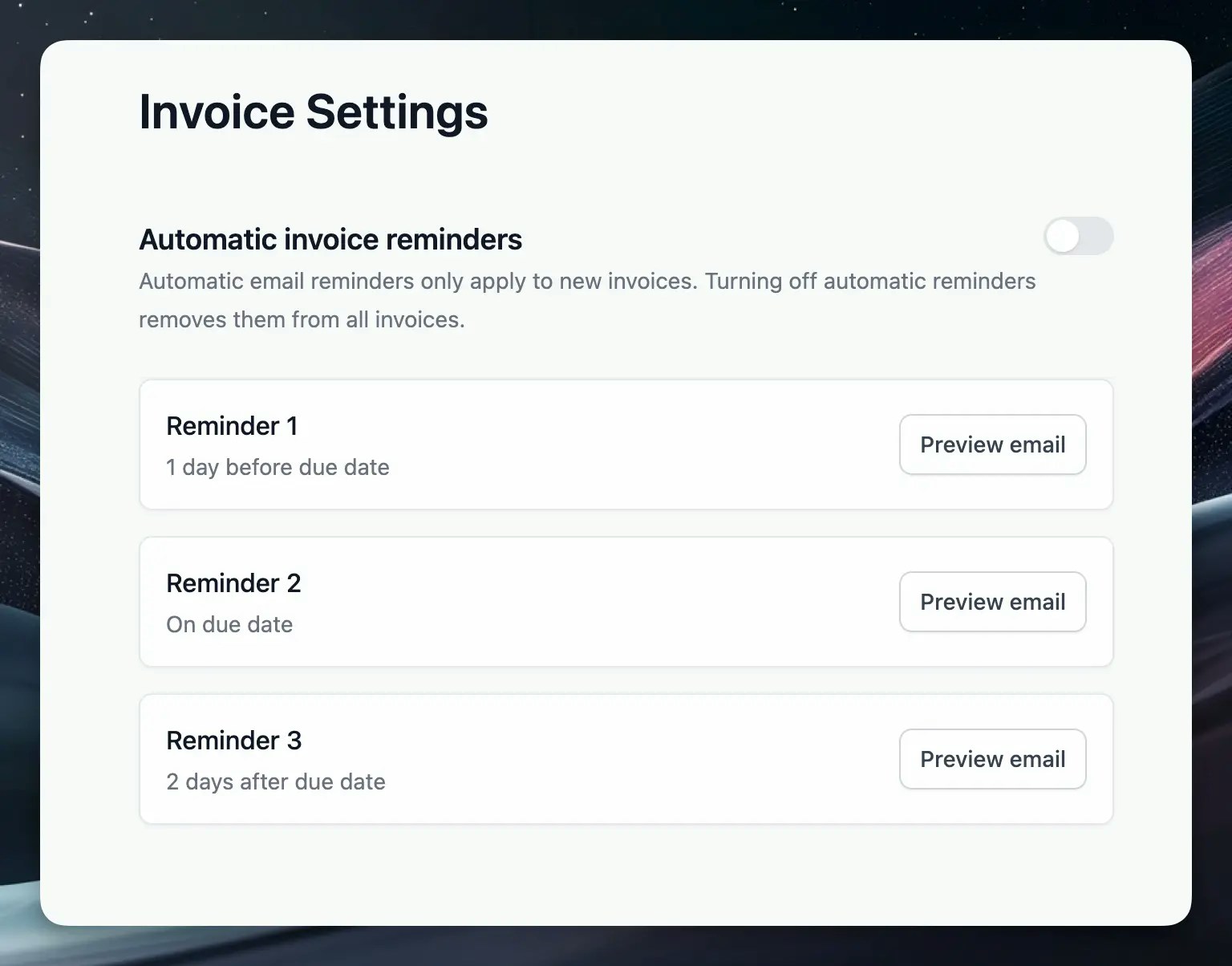
2. Find the **Automatic invoice reminders** toggle
3. Switch the toggle to **On**
Automated email reminders only apply to new invoices created after enabling
this feature. Turning off automatic reminders removes them from all invoices.
Automatic reminders are a company-wide setting — they can't be turned on or
off for an individual invoice.
### Default Reminder Schedule
When enabled, Flashquotes will automatically send reminder emails based on the following schedule:
| Reminder | Timing |
| ---------- | --------------------- |
| Reminder 1 | 1 day before due date |
| Reminder 2 | On the due date |
| Reminder 3 | 2 days after due date |
 ### Preview Reminder Emails
You can preview how each reminder email will appear to customers:
1. Navigate to **Settings** > **Invoices**
2. Find the reminder you want to review
3. Click the **Preview email** button
This allows you to ensure your automated reminders maintain the appropriate tone and messaging for your business.
## Manual Invoice Reminders
In addition to automated reminders, you can send one-off reminders for any invoice:
1. Go to the **Invoices** page in Flashquotes
2. Select the specific invoice you want to remind about
3. Click the **Send Invoice** button
4. A preview modal will appear showing the reminder email
5. Customize the email subject if needed
6. Click **Send** to deliver the reminder to your customer
Manual reminders are particularly useful for following up on overdue invoices
that require special attention, or for invoices created before you enabled
automated reminders.
## Best Practices
* **Enable automated reminders** for a consistent follow-up process
* **Review reminder preview emails** to ensure they match your company's tone
* **Use manual reminders** for special circumstances or older invoices
* **Monitor invoice status** regularly to identify any payment issues
* **Combine with clear payment terms** set in your initial invoice
## Next Steps
After setting up your invoice reminders:
* [Configure invoice payment methods](/invoices#payment-options)
* [Set up financial reporting](/invoices#financial-reporting)
* [Learn about handling refunds](/invoices/refunds)
### Preview Reminder Emails
You can preview how each reminder email will appear to customers:
1. Navigate to **Settings** > **Invoices**
2. Find the reminder you want to review
3. Click the **Preview email** button
This allows you to ensure your automated reminders maintain the appropriate tone and messaging for your business.
## Manual Invoice Reminders
In addition to automated reminders, you can send one-off reminders for any invoice:
1. Go to the **Invoices** page in Flashquotes
2. Select the specific invoice you want to remind about
3. Click the **Send Invoice** button
4. A preview modal will appear showing the reminder email
5. Customize the email subject if needed
6. Click **Send** to deliver the reminder to your customer
Manual reminders are particularly useful for following up on overdue invoices
that require special attention, or for invoices created before you enabled
automated reminders.
## Best Practices
* **Enable automated reminders** for a consistent follow-up process
* **Review reminder preview emails** to ensure they match your company's tone
* **Use manual reminders** for special circumstances or older invoices
* **Monitor invoice status** regularly to identify any payment issues
* **Combine with clear payment terms** set in your initial invoice
## Next Steps
After setting up your invoice reminders:
* [Configure invoice payment methods](/invoices#payment-options)
* [Set up financial reporting](/invoices#financial-reporting)
* [Learn about handling refunds](/invoices/refunds)