> ## Documentation Index
> Fetch the complete documentation index at: https://docs.flashquotes.com/llms.txt
> Use this file to discover all available pages before exploring further.
# Instant Pricing & Quoting
> Learn how to configure automatic price calculations and instant quoting for your services
## Overview
Instant Pricing and Quoting automatically calculates service quotes based on predefined pricing rules, saving time and ensuring consistent pricing across your lead intake forms. With Instant Quoting enabled, clients can receive and book quotes immediately upon form submission.
## Video Tutorial
Watch this step-by-step guide on setting up Instant Quoting:
## Setting Up Service Pricing
### Step 1: Create or Edit a Service
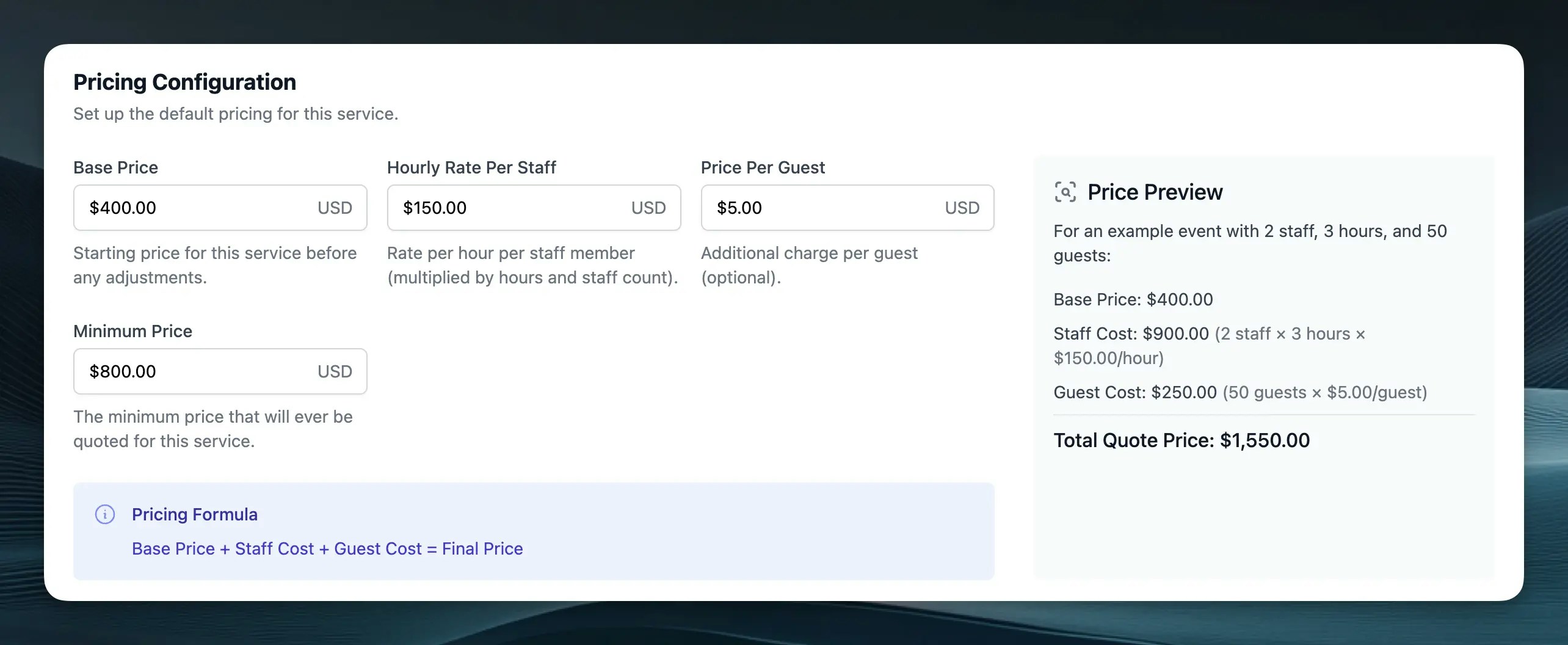
Navigate to the Services tab and either create a new service or edit an existing one. In the service editor, you'll find the Pricing Configuration section with the following options:
* **Base Price**: Starting price for the service before any adjustments
* **Hourly Rate Per Staff**: Rate charged per staff member per hour
* **Price Per Guest**: Additional charge that scales with guests. On the service pricing page you can choose **Per guest** (rate × guests) or **Per guest per hour** (rate × guests × hours).
* **Minimum Price**: The lowest price that will ever be quoted for this service
The Minimum Price threshold ensures you never quote below your cost basis,
protecting your business's profitability.
### Example Calculation
For an event with:
* 2 staff members
* 3 hours duration
* 50 guests
The total price would be calculated as:
```
Total = Base Price + (Hourly Rate × Staff × Hours) + Guest Component
```
The **Guest Component** depends on the guest pricing mode set on the service: either (Price per guest × Guests) or (Price per guest × Guests × Hours).
If the calculated total is less than the Minimum Price, the system will
automatically use the Minimum Price instead.
## Setting Default Pricing Rules
### Step 1: Access Pricing Settings
1. Go to your lead intake form's edit page
2. Click the "Instant Pricing" button in the header navigation
3. The pricing settings modal will open
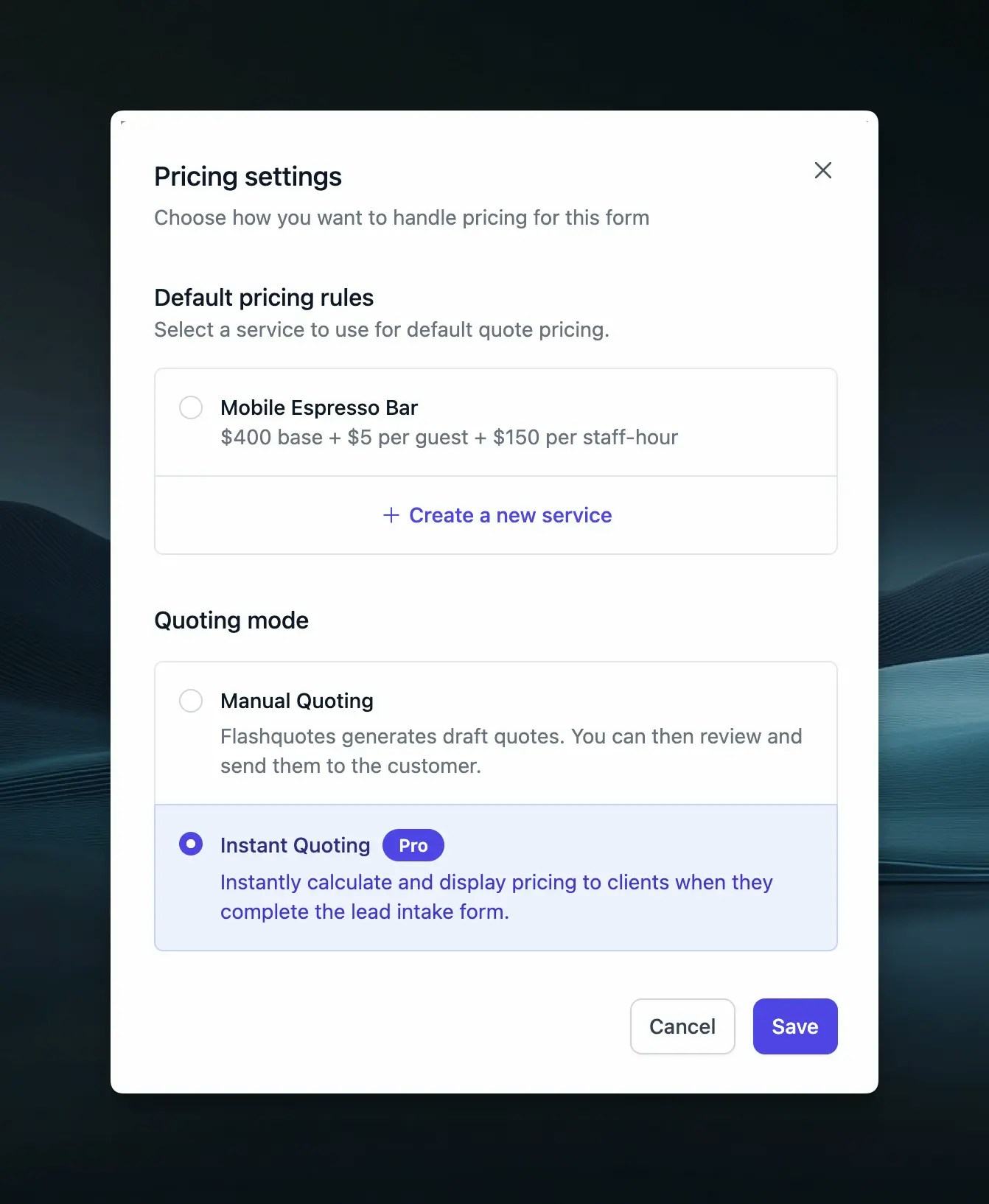
### Step 2: Configure Quoting Mode
When configuring your lead intake form's pricing settings, you'll find two quoting modes:
* **Manual Quoting** (Default): Generates a draft quote for admin review before sending
* **Instant Quoting**: Automatically calculates and presents quotes to clients immediately upon form submission
Instant Quoting is available exclusively on the [FlashQuotes Pro
plan](https://app.flashquotes.com/settings/plans).
### Step 3: Choose Your Pricing Approach
There are two ways pricing works with forms, depending on whether you have a service selection question:
#### Forms WITH Service Selection Questions
When your form includes a service selection question:
* Pricing comes from the service the customer selects
* Works for both manual and instant quoting
* The "fallback service" configured below is only used if no service is selected
* Each service can have different pricing rules
#### Forms WITHOUT Service Selection Questions
When your form doesn't include service selection:
* All quotes use the single service configured in pricing settings
* This creates "fixed pricing" where every quote follows the same pricing rules
* Simpler setup for single-service businesses
Not sure which approach to use? Single service businesses often prefer fixed pricing, while multi-service businesses benefit from service selection questions.
### Step 4: Configure Fallback Service
Select a service to use when:
* Forms with service selection have no service selected
* Forms without service selection questions (this becomes your fixed pricing service)
Make sure to test your pricing configurations with different combinations of
staff, hours, and guest counts before enabling Instant Quoting. If using a
service selection question, test with each available service option.
## How It Works
When Instant Quoting is enabled:
1. **Client submits your lead intake form**
2. **System determines pricing source:**
* **With service selection question**: Uses the service the customer selected
* **Without service selection question**: Uses the fallback service configured in settings
* **No service selected**: Falls back to the configured default service
3. **Calculates the price using the selected service's pricing rules:**
* Base price + (Hourly rate × Staff × Hours) + guest component (per guest or per guest per hour, depending on the service's guest pricing mode)
* Applies minimum price threshold if calculated total is lower
4. **Automatically redirects client to quote presentation page**
5. **Client can review the quote and click "Book Now" immediately**
The pricing calculation is identical for manual and instant quoting - the only difference is when the quote gets presented to the customer.
Instant Quoting creates a seamless experience where clients can inquire,
receive a quote, and book all in one visit to your website.
## Best Practices
Before enabling Instant Quoting:
* Test different combinations of staff, hours, and guest counts
* Verify calculations align with your business model
* Check that minimum prices are being applied correctly
Stay competitive and profitable by:
* Periodically reviewing your pricing configurations
* Adjusting rates based on market conditions
* Updating minimum prices as costs change
Maximize flexibility with:
* Different services for various event types
* Unique pricing configurations per service level
* Specialized rates for premium offerings
## Important Notes
Instant Quoting requires careful configuration of your pricing rules to ensure
accuracy based on the duration and guest count for each day. **Consider
starting with Manual Quoting mode to verify your pricing rules before enabling
Instant Quoting**
## Next Steps
After setting up Instant Pricing and Quoting:
* [Test your forms](/forms/booking) with sample submissions
* [Review generated quotes](/leads/quotes) to ensure accuracy
* [Monitor conversion rates](/leads/managing) to optimize your pricing strategy
* [Configure your quote template](/leads/quote-view) for an enhanced quote presentation that maximizes conversion rates
 * **Base Price**: Starting price for the service before any adjustments
* **Hourly Rate Per Staff**: Rate charged per staff member per hour
* **Price Per Guest**: Additional charge that scales with guests. On the service pricing page you can choose **Per guest** (rate × guests) or **Per guest per hour** (rate × guests × hours).
* **Minimum Price**: The lowest price that will ever be quoted for this service
* **Base Price**: Starting price for the service before any adjustments
* **Hourly Rate Per Staff**: Rate charged per staff member per hour
* **Price Per Guest**: Additional charge that scales with guests. On the service pricing page you can choose **Per guest** (rate × guests) or **Per guest per hour** (rate × guests × hours).
* **Minimum Price**: The lowest price that will ever be quoted for this service
 ### Step 2: Configure Quoting Mode
When configuring your lead intake form's pricing settings, you'll find two quoting modes:
* **Manual Quoting** (Default): Generates a draft quote for admin review before sending
* **Instant Quoting**: Automatically calculates and presents quotes to clients immediately upon form submission
### Step 2: Configure Quoting Mode
When configuring your lead intake form's pricing settings, you'll find two quoting modes:
* **Manual Quoting** (Default): Generates a draft quote for admin review before sending
* **Instant Quoting**: Automatically calculates and presents quotes to clients immediately upon form submission