> ## Documentation Index
> Fetch the complete documentation index at: https://docs.flashquotes.com/llms.txt
> Use this file to discover all available pages before exploring further.
# Managing Leads
> Learn how to track and manage leads in Flashquotes
export const PlusBadge = () =>
Plus
;
## Overview
The Leads section in Flashquotes helps you track and manage potential clients from initial inquiry through quote acceptance. Each lead contains essential event details and client information needed for quote generation.
## Lead Management
### Key information
The lead dashboard provides a quick overview of your leads, including contact information, lead source, and status.
This is the best place to manage your active leads and will be your go-to workflow for quoting and converting leads to bookings.
The table includes pipeline metrics like Open Inquiries, Open Quotes, Upcoming Bookings, and Latest Communication. All columns are sortable, and summary statistics above the table show your overall pipeline health with tooltips explaining each metric.
### Filters
* Click on status cards to easily quick filter leads by status
* Filter leads source, lead owner, or date range
* Search for leads by common fields like name, email, or phone number
* Reference *Booking percentage* to measure how well you're converting leads to bookings
 Use status indicators to quickly identify leads requiring attention.
Click on a lead to open the detail page. It's organized into six tabs so you can find what you need without scrolling through everything at once.
* **Overview** — activity feed, lead info, and a summary of all quotes
* **Quotes** — create and manage quotes for the lead
* **Bookings** — view confirmed bookings tied to this lead
* **Emails** — view email threads with the lead
* **Notes** — add and search notes about the lead
* **Workflows** — view and manage active workflow enrollments
### Quote statuses
* **Draft**: A quote has been created but not yet sent. Build out this quote and send it to the lead.
* **Sent** - A quote has been sent to the lead. Follow up with the lead to secure the booking.
* **Booked** - A lead has booked the quoted event. Manage the [booking](/bookings) and [events](/events) to deliver amazing service
* **Expired** - The sent quote has passed its expiration date. Customers cannot book expired quotes and will be prompted to request a new quote or contact you.
Use notes to log context, follow-up reminders, or anything worth remembering about a lead. Go to the **Notes** tab on the lead detail page.
### Creating a note
1. Click **Add Note** on the Notes tab
2. Write your note using the rich text editor
3. Click **Save**
### Pinning notes
Pin important notes to keep them at the top of the list. Click the pin icon on any note.
### Searching notes
Use the search bar on the Notes tab to filter notes by keyword.
The **Overview** tab on each lead includes a unified activity feed showing everything that's happened in one chronological view.
The feed includes:
* Notes added by your team
* Emails sent and received
* Quote status changes
* Workflow events and automated actions
Use the feed to catch up on a lead quickly before reaching out to a client — no need to check each tab separately.
Follow leads through:
* Initial inquiry
* Quote generation
* Quote delivery
* Client communication and follow up
* Quote acceptance and booking
Sending out a quote within the first hour of inquiry can help you stand out
and will increase your chance of securing the booking.
Admins can change individual quote expiration dates to extend opportunities or accommodate special circumstances.
Use status indicators to quickly identify leads requiring attention.
Click on a lead to open the detail page. It's organized into six tabs so you can find what you need without scrolling through everything at once.
* **Overview** — activity feed, lead info, and a summary of all quotes
* **Quotes** — create and manage quotes for the lead
* **Bookings** — view confirmed bookings tied to this lead
* **Emails** — view email threads with the lead
* **Notes** — add and search notes about the lead
* **Workflows** — view and manage active workflow enrollments
### Quote statuses
* **Draft**: A quote has been created but not yet sent. Build out this quote and send it to the lead.
* **Sent** - A quote has been sent to the lead. Follow up with the lead to secure the booking.
* **Booked** - A lead has booked the quoted event. Manage the [booking](/bookings) and [events](/events) to deliver amazing service
* **Expired** - The sent quote has passed its expiration date. Customers cannot book expired quotes and will be prompted to request a new quote or contact you.
Use notes to log context, follow-up reminders, or anything worth remembering about a lead. Go to the **Notes** tab on the lead detail page.
### Creating a note
1. Click **Add Note** on the Notes tab
2. Write your note using the rich text editor
3. Click **Save**
### Pinning notes
Pin important notes to keep them at the top of the list. Click the pin icon on any note.
### Searching notes
Use the search bar on the Notes tab to filter notes by keyword.
The **Overview** tab on each lead includes a unified activity feed showing everything that's happened in one chronological view.
The feed includes:
* Notes added by your team
* Emails sent and received
* Quote status changes
* Workflow events and automated actions
Use the feed to catch up on a lead quickly before reaching out to a client — no need to check each tab separately.
Follow leads through:
* Initial inquiry
* Quote generation
* Quote delivery
* Client communication and follow up
* Quote acceptance and booking
Sending out a quote within the first hour of inquiry can help you stand out
and will increase your chance of securing the booking.
Admins can change individual quote expiration dates to extend opportunities or accommodate special circumstances.
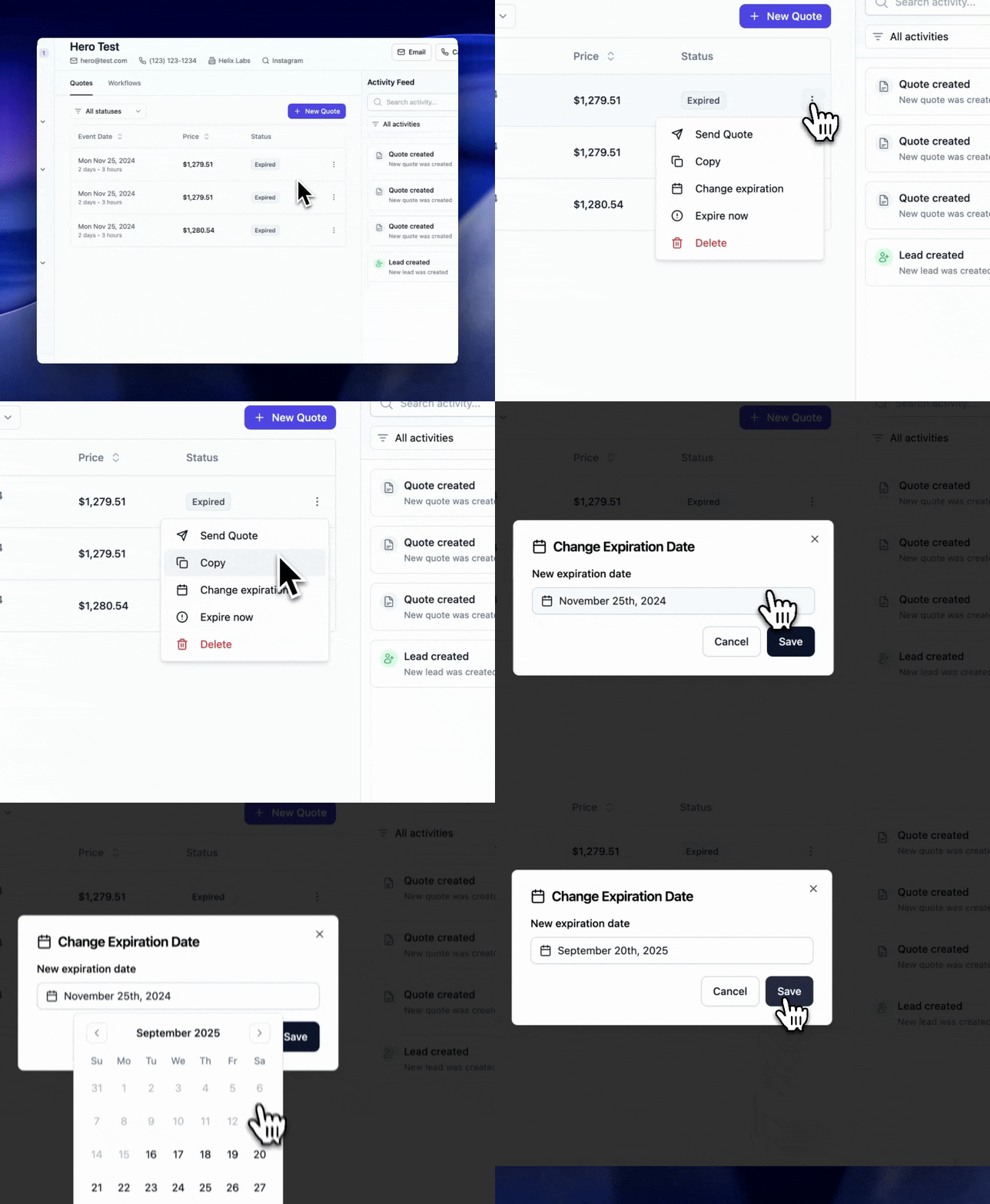 ### Where to Change Expiration Dates
You can modify quote expiration from three locations:
* **Lead Details Page**: Click on the lead, then edit the quote expiration
* **Quote Edit Page**: When editing a quote, update the expiration field
* **Quote View Page**: View the quote and click to modify expiration
### Common Scenarios
**Extending About-to-Expire Quotes:**
* If a client needs more time to decide, extend the expiration by a few days
* This prevents the quote from expiring while negotiations are ongoing
**Reactivating Expired Quotes:**
* Change the expiration date to a future date to reactivate an expired quote
* The quote becomes bookable again immediately
**Removing Expiration:**
* For special clients or situations, you can remove the expiration entirely
* The quote will remain bookable indefinitely
Monitor quotes approaching expiration and proactively extend them if you're still in conversation with the lead.
Remember that expired quotes cannot be booked by customers. They'll see a message prompting them to request a new quote or contact you directly.
Assign leads to specific team members for better accountability and follow-up tracking.
### To assign a lead owner
1. Open a lead from the Leads page
2. Click **Edit Lead** in the lead header
3. Select a team member from the **Lead Owner** dropdown
4. Click **Save**
The lead owner appears in the lead header and leads table, and can be used as a filter to view only your assigned leads.
Internal support accounts are automatically hidden from the lead owner dropdown to keep your team list clean.
Most new leads are captured through the [lead intake form](/forms/lead-intake)
embedded on your website, however, you can also add leads manually.
## Best Practices
1. Respond to leads promptly
2. Keep lead information current
3. Track communication history
4. Monitor conversion rates
5. Follow up consistently
## Next Steps
After receiving leads:
* [Create quotes](/leads/quotes)
* [Send quotes](/leads/sending-quotes)
* Track responses
* Follow up with clients
### Where to Change Expiration Dates
You can modify quote expiration from three locations:
* **Lead Details Page**: Click on the lead, then edit the quote expiration
* **Quote Edit Page**: When editing a quote, update the expiration field
* **Quote View Page**: View the quote and click to modify expiration
### Common Scenarios
**Extending About-to-Expire Quotes:**
* If a client needs more time to decide, extend the expiration by a few days
* This prevents the quote from expiring while negotiations are ongoing
**Reactivating Expired Quotes:**
* Change the expiration date to a future date to reactivate an expired quote
* The quote becomes bookable again immediately
**Removing Expiration:**
* For special clients or situations, you can remove the expiration entirely
* The quote will remain bookable indefinitely
Monitor quotes approaching expiration and proactively extend them if you're still in conversation with the lead.
Remember that expired quotes cannot be booked by customers. They'll see a message prompting them to request a new quote or contact you directly.
Assign leads to specific team members for better accountability and follow-up tracking.
### To assign a lead owner
1. Open a lead from the Leads page
2. Click **Edit Lead** in the lead header
3. Select a team member from the **Lead Owner** dropdown
4. Click **Save**
The lead owner appears in the lead header and leads table, and can be used as a filter to view only your assigned leads.
Internal support accounts are automatically hidden from the lead owner dropdown to keep your team list clean.
Most new leads are captured through the [lead intake form](/forms/lead-intake)
embedded on your website, however, you can also add leads manually.
## Best Practices
1. Respond to leads promptly
2. Keep lead information current
3. Track communication history
4. Monitor conversion rates
5. Follow up consistently
## Next Steps
After receiving leads:
* [Create quotes](/leads/quotes)
* [Send quotes](/leads/sending-quotes)
* Track responses
* Follow up with clients