> ## Documentation Index
> Fetch the complete documentation index at: https://docs.flashquotes.com/llms.txt
> Use this file to discover all available pages before exploring further.
# Pipeline
> Track every open quote from new inquiry to booked in a visual pipeline
export const PlusBadge = () =>
Plus
;
## Overview
The Pipeline is your working view of every open quote — organized into stages so you always know what needs attention next. Each card is a quote (a contact with multiple quotes appears once per quote), and cards move through the pipeline as you work them from new inquiry to booked.
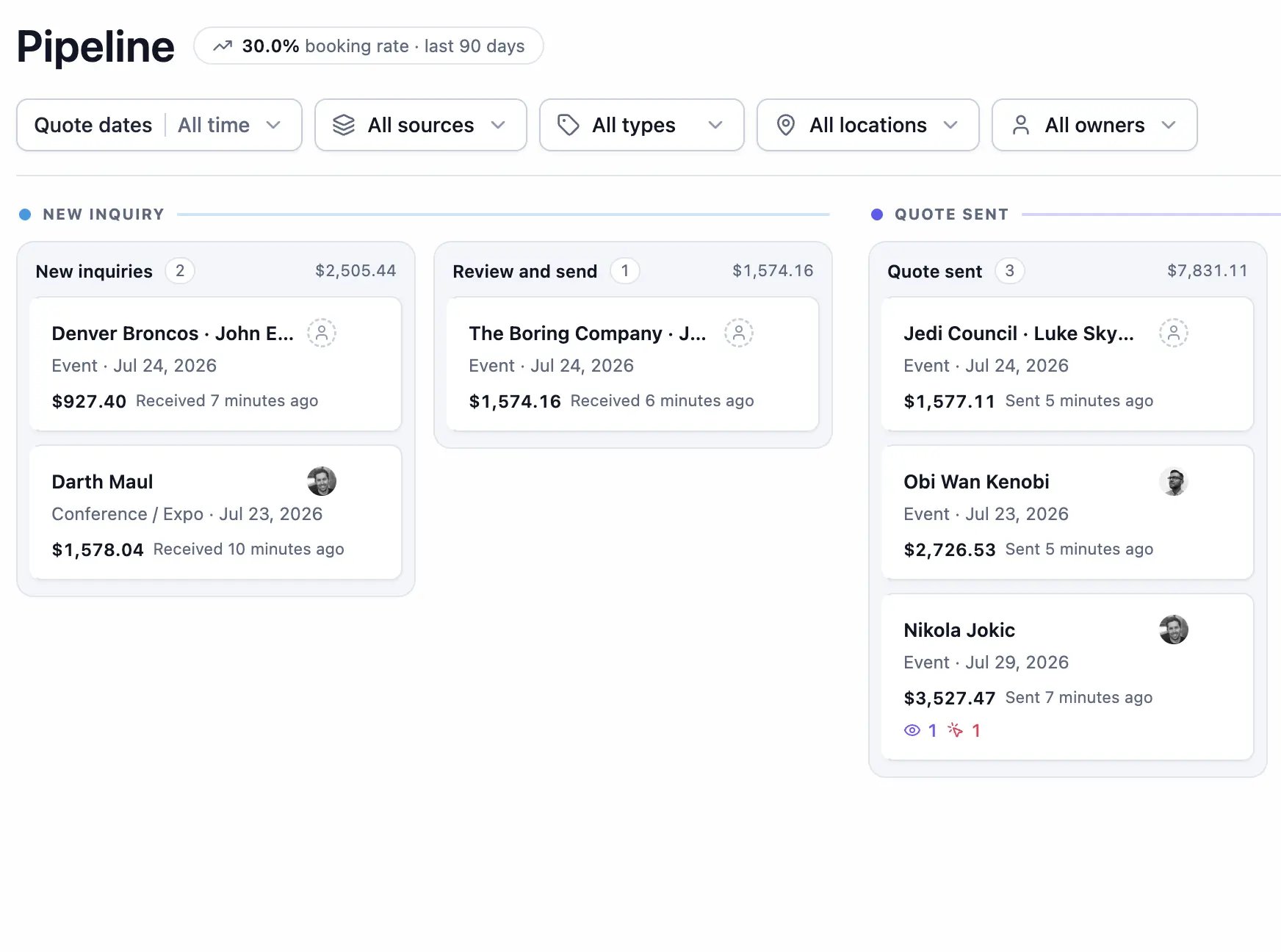 The board shows open quotes from the last 90 days. A booking-rate chip in the header shows your conversion over the same window and links to [Reports](/reports) for the full breakdown.
Looking for people instead of quotes? Every client lives on the
[Contacts](/contacts) page — the Pipeline focuses on the quotes you're
working to get booked.
## Stages
Quotes move through four groups:
* **New inquiry** — quote requests that haven't been sent yet
* **Quote sent** — quotes delivered to the client, awaiting a decision
* **Booked** — quotes the client accepted
* **Lost** — quotes you've closed out
**New inquiry** and **Quote sent** appear as columns on the board. **Booked** and **Lost** are managed for you — quotes land there automatically when a client books or when you mark a quote as lost, and you can review them from the counters above the board (or on the [Bookings](/bookings) page).
Each column shows its card count and total quote value, so you can read the health of your pipeline at a glance.
### Moving quotes
Drag a card to move it between stages within the same group. Quotes advance between groups on their own — sending a quote moves it to **Quote sent**, and a booking moves it to **Booked** — so the board always reflects reality.
While dragging, a **Mark as lost** drop zone appears at the bottom of the screen. Drop a card there to close it out with an optional reason — **Price**, **Date unavailable**, **Went silent**, **Chose someone else**, or **Other**. Lost quotes are never deleted; find them anytime under the Lost filter.
### Custom stages
Click **Edit stages** to tailor the board to how you actually work — for example, splitting **Quote sent** into "In revision" and "Verbal yes."
* Add, rename, reorder, and delete stages within **New inquiry** and **Quote sent**
* Deleting a stage prompts you to pick a destination for its quotes
* **Booked** and **Lost** are managed for you and can't be customized
On the free plan, quotes stay organized in the default stages; you can rename them, but adding stages requires Plus.
## Quote cards
Each card surfaces what you need to decide your next move:
* **Contact name** and owner avatar (click the avatar to reassign)
* **Event summary** — event type and date
* **Quote total** — including service charges, discounts, and tax
* **Latest activity** — "Sent 3 days ago," "Emailed…" — the line turns amber, then red, as a quote sits idle so follow-ups don't slip
* **Engagement icons** — email opens, quote views, and Book Now clicks
* A 🔥 flame marks **hot quotes** — the client engaged in the last 24 hours, so strike while the interest is fresh
* An **Expired** badge when the quote has passed its expiration date
Use the menu on any card to send the quote, mark it as sent, open it, change the owner, move it to another stage, or mark it as lost — without leaving the board.
## Board and list views
Toggle between the kanban **Board** and a **List** view from the header — your choice is remembered. The list shows Contact, Event, Stage, Quote, Latest activity, Engagement, and Owner columns, which is handy for scanning a large pipeline or sorting by a single column.
## Sorting and filtering
Sort the pipeline by:
* **Needs attention** (default) — most urgent first
* **Event date** — soonest first
* **Quote value** — highest first
* **Created** — newest first
Filter by created date range, source, event type, location, or owner to narrow the board to exactly the quotes you're working.
## Creating quotes
Click **New quote** to start a quote from the Pipeline. Pick an existing contact or create a new one, then build the quote — nothing is saved until you finish, so you can back out cleanly. See [Creating Quotes](/contacts/quotes) for the full quoting guide.
## Next steps
* [Manage your contacts](/contacts)
* [Create quotes](/contacts/quotes)
* [Send quotes](/contacts/sending-quotes)
* [Track performance in Reports](/reports)
The board shows open quotes from the last 90 days. A booking-rate chip in the header shows your conversion over the same window and links to [Reports](/reports) for the full breakdown.
Looking for people instead of quotes? Every client lives on the
[Contacts](/contacts) page — the Pipeline focuses on the quotes you're
working to get booked.
## Stages
Quotes move through four groups:
* **New inquiry** — quote requests that haven't been sent yet
* **Quote sent** — quotes delivered to the client, awaiting a decision
* **Booked** — quotes the client accepted
* **Lost** — quotes you've closed out
**New inquiry** and **Quote sent** appear as columns on the board. **Booked** and **Lost** are managed for you — quotes land there automatically when a client books or when you mark a quote as lost, and you can review them from the counters above the board (or on the [Bookings](/bookings) page).
Each column shows its card count and total quote value, so you can read the health of your pipeline at a glance.
### Moving quotes
Drag a card to move it between stages within the same group. Quotes advance between groups on their own — sending a quote moves it to **Quote sent**, and a booking moves it to **Booked** — so the board always reflects reality.
While dragging, a **Mark as lost** drop zone appears at the bottom of the screen. Drop a card there to close it out with an optional reason — **Price**, **Date unavailable**, **Went silent**, **Chose someone else**, or **Other**. Lost quotes are never deleted; find them anytime under the Lost filter.
### Custom stages
Click **Edit stages** to tailor the board to how you actually work — for example, splitting **Quote sent** into "In revision" and "Verbal yes."
* Add, rename, reorder, and delete stages within **New inquiry** and **Quote sent**
* Deleting a stage prompts you to pick a destination for its quotes
* **Booked** and **Lost** are managed for you and can't be customized
On the free plan, quotes stay organized in the default stages; you can rename them, but adding stages requires Plus.
## Quote cards
Each card surfaces what you need to decide your next move:
* **Contact name** and owner avatar (click the avatar to reassign)
* **Event summary** — event type and date
* **Quote total** — including service charges, discounts, and tax
* **Latest activity** — "Sent 3 days ago," "Emailed…" — the line turns amber, then red, as a quote sits idle so follow-ups don't slip
* **Engagement icons** — email opens, quote views, and Book Now clicks
* A 🔥 flame marks **hot quotes** — the client engaged in the last 24 hours, so strike while the interest is fresh
* An **Expired** badge when the quote has passed its expiration date
Use the menu on any card to send the quote, mark it as sent, open it, change the owner, move it to another stage, or mark it as lost — without leaving the board.
## Board and list views
Toggle between the kanban **Board** and a **List** view from the header — your choice is remembered. The list shows Contact, Event, Stage, Quote, Latest activity, Engagement, and Owner columns, which is handy for scanning a large pipeline or sorting by a single column.
## Sorting and filtering
Sort the pipeline by:
* **Needs attention** (default) — most urgent first
* **Event date** — soonest first
* **Quote value** — highest first
* **Created** — newest first
Filter by created date range, source, event type, location, or owner to narrow the board to exactly the quotes you're working.
## Creating quotes
Click **New quote** to start a quote from the Pipeline. Pick an existing contact or create a new one, then build the quote — nothing is saved until you finish, so you can back out cleanly. See [Creating Quotes](/contacts/quotes) for the full quoting guide.
## Next steps
* [Manage your contacts](/contacts)
* [Create quotes](/contacts/quotes)
* [Send quotes](/contacts/sending-quotes)
* [Track performance in Reports](/reports)