> ## Documentation Index
> Fetch the complete documentation index at: https://docs.flashquotes.com/llms.txt
> Use this file to discover all available pages before exploring further.
# Staff & Resource Rules
> Configure per-service staffing rules to automatically calculate staff and resource quantities for quotes
## Overview
Staff & Resource Rules let you define staffing rules at the service level. When a customer fills out your lead intake form, Flashquotes automatically calculates how many staff and resources are needed — based on hourly capacity, guest count, duration, or a combination — and applies those quantities directly to your quote pricing.
Each service gets its own rule. When a quote is created, Flashquotes calculates the price for each service individually using that service's calculated staff and resource quantities.
If a selected service doesn't have a staffing rule configured, Flashquotes falls back to the [form-level staffing calculator](/forms/staffing-calculator) settings.
## Rule Modes
Each service's rule uses one of four modes. Choose the one that matches how your staffing scales.
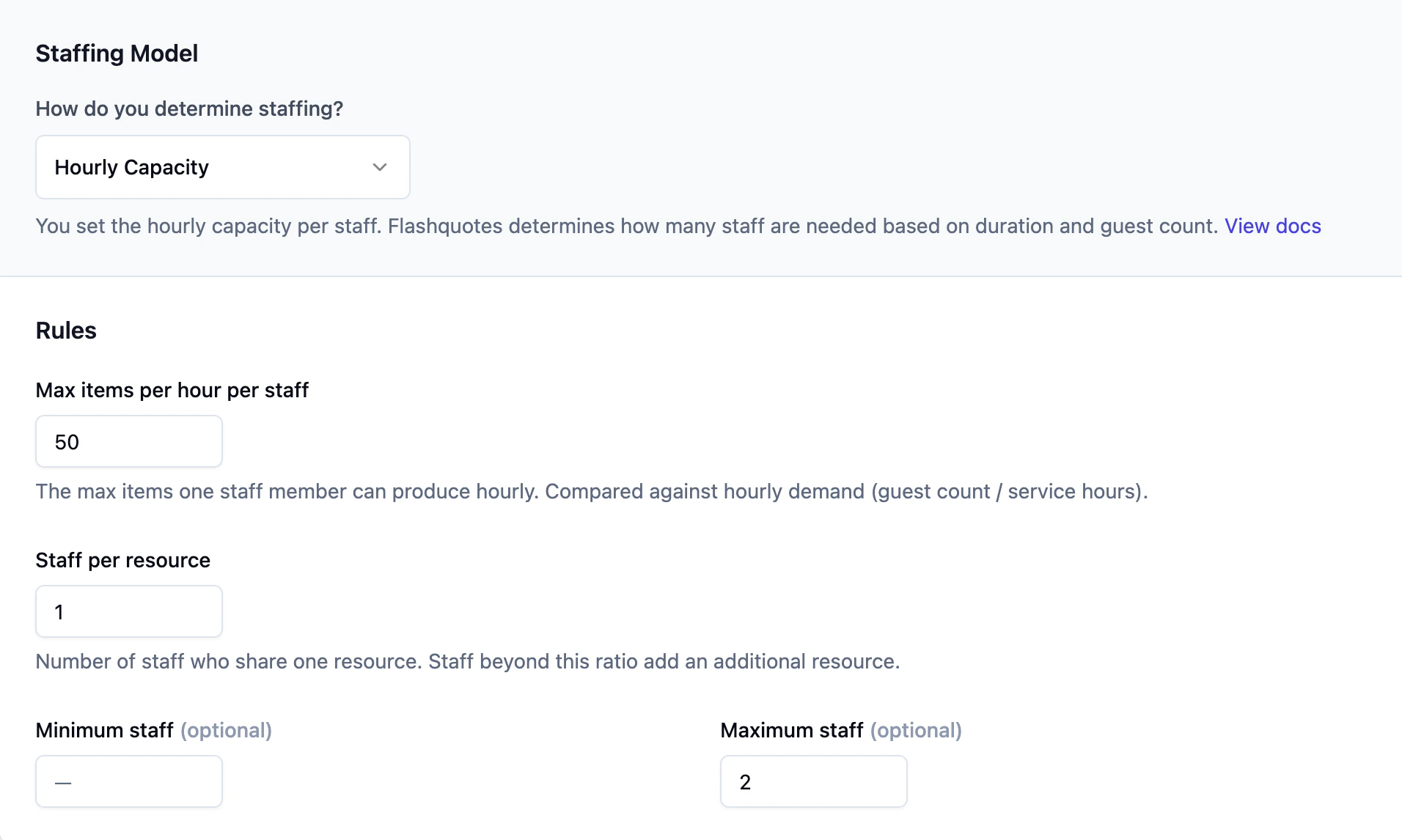
### Hourly Capacity
The default mode. Uses a formula based on guest count, service duration, and a capacity ratio.
**How it works:**
* Set how many items (coffees, cocktails etc.) one staff member can serve per hour
* Flashquotes divides total demand by that capacity to get the staff count
* Optionally set a minimum and maximum staff count
* Set a staff-per-resource ratio (e.g., 1 resource for every 2 staff)
**Example:** A coffee catering company sets capacity to 50 drinks/hour/staff and staff-per-resource ratio at 2 staff to 1 resource. For 200 guests over 3 hours: `200 guests / 3 hours / 50 per hour = 2 staff needed and 1 resource needed`.
 ### By Guest Count
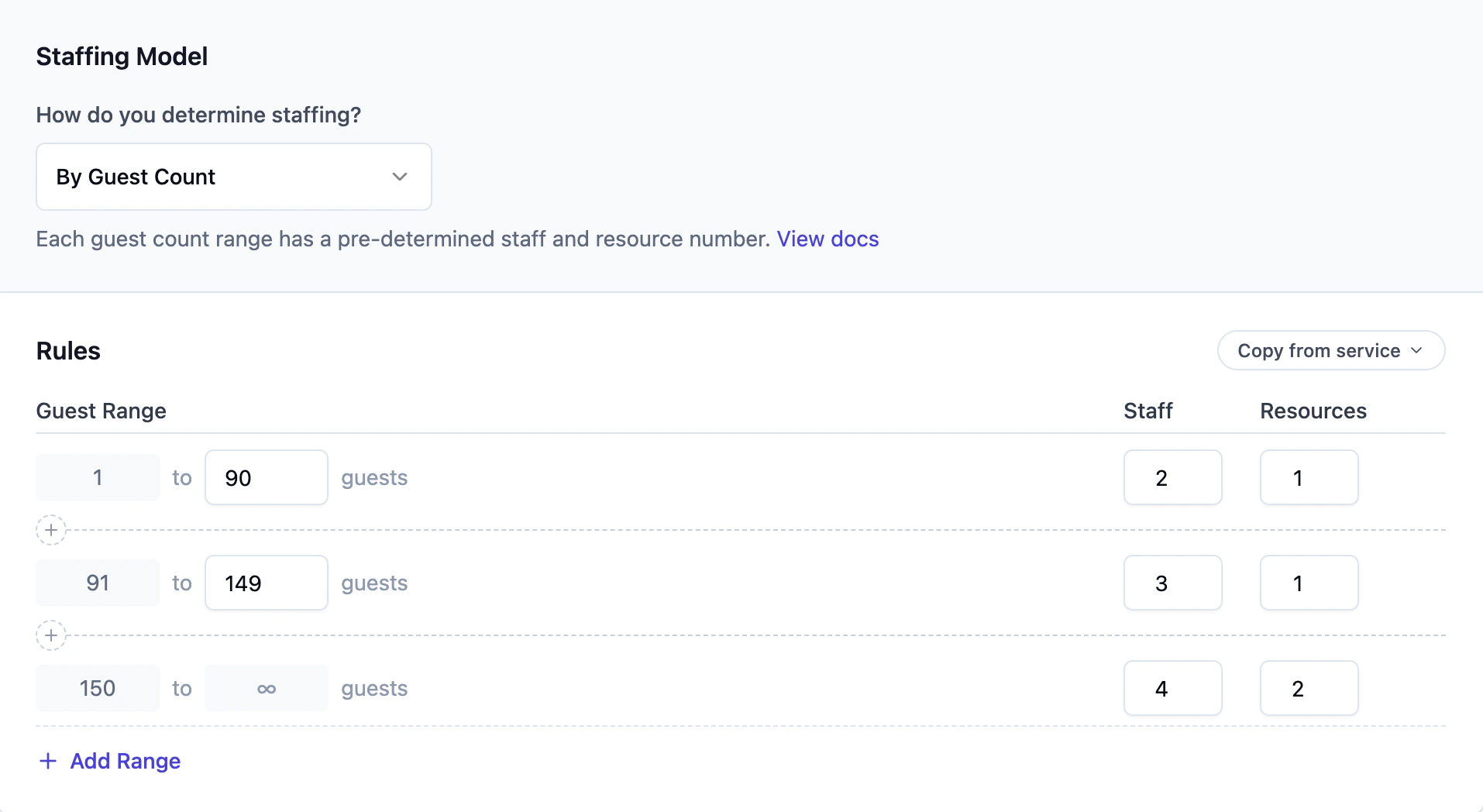
Maps guest count ranges to fixed staff and resource quantities.
**How it works:**
* Define guest count ranges (e.g., 1–74, 75–149, 150–300)
* For each range, specify how many staff and resources are needed
* The customer's guest count determines which range applies
**Example:** A photo booth company needs 1 attendant for up to 100 guests, 2 for 100–250, and 3 for 250+. Three ranges, done.
### By Guest Count
Maps guest count ranges to fixed staff and resource quantities.
**How it works:**
* Define guest count ranges (e.g., 1–74, 75–149, 150–300)
* For each range, specify how many staff and resources are needed
* The customer's guest count determines which range applies
**Example:** A photo booth company needs 1 attendant for up to 100 guests, 2 for 100–250, and 3 for 250+. Three ranges, done.
 ### By Duration
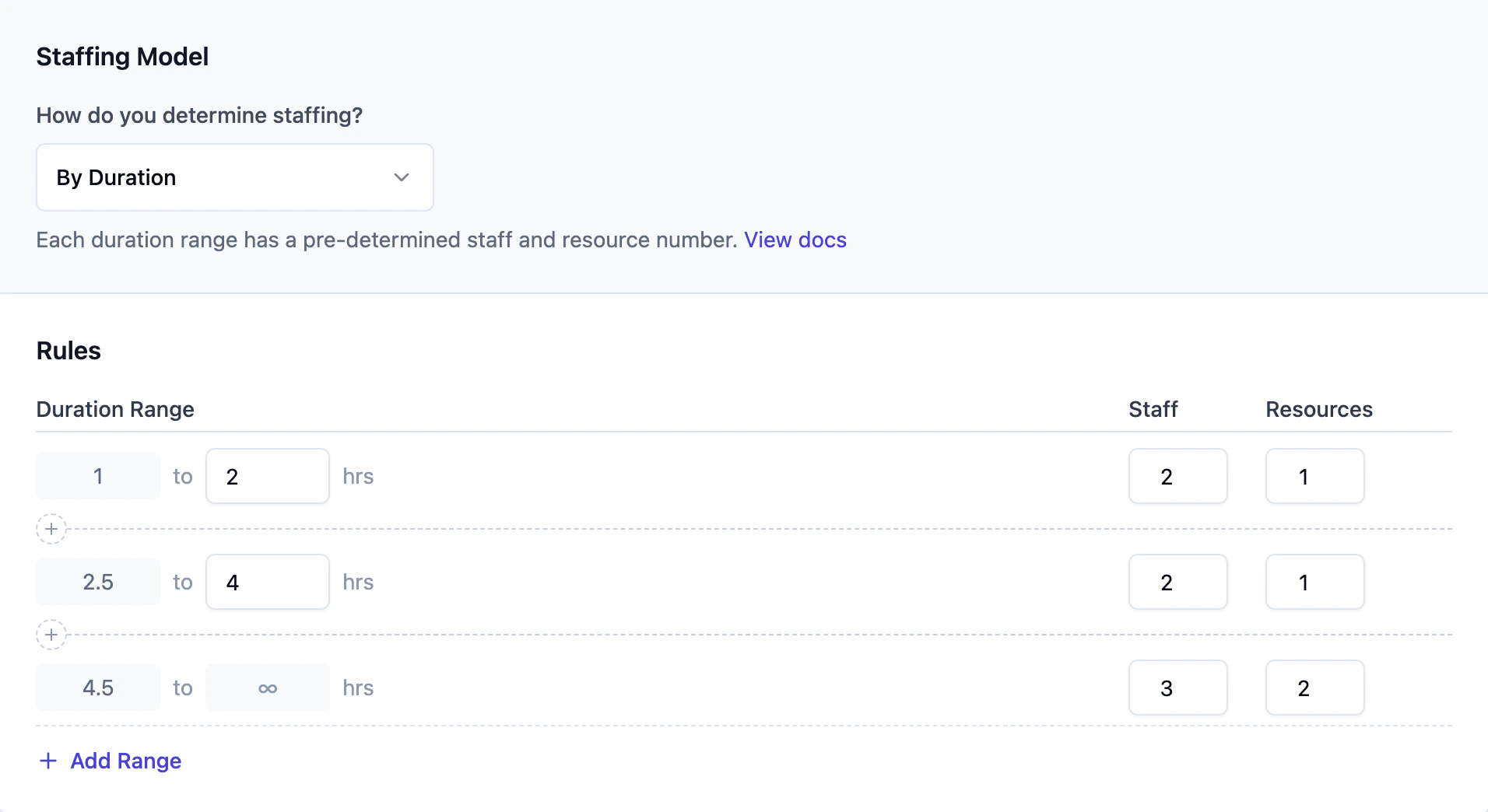
Maps service duration ranges to staff and resource quantities.
**How it works:**
* Define duration ranges (e.g., 1–2 hours, 2.5–4 hours, 4.5–8 hours)
* For each range, specify staff and resource counts
* The customer's selected service length determines which range applies
**Example:** A DJ service needs 1 DJ for events up to 4 hours, 2 DJs for anything longer. Two ranges cover it.
### By Duration
Maps service duration ranges to staff and resource quantities.
**How it works:**
* Define duration ranges (e.g., 1–2 hours, 2.5–4 hours, 4.5–8 hours)
* For each range, specify staff and resource counts
* The customer's selected service length determines which range applies
**Example:** A DJ service needs 1 DJ for events up to 4 hours, 2 DJs for anything longer. Two ranges cover it.
 ### By Guest Count + Duration
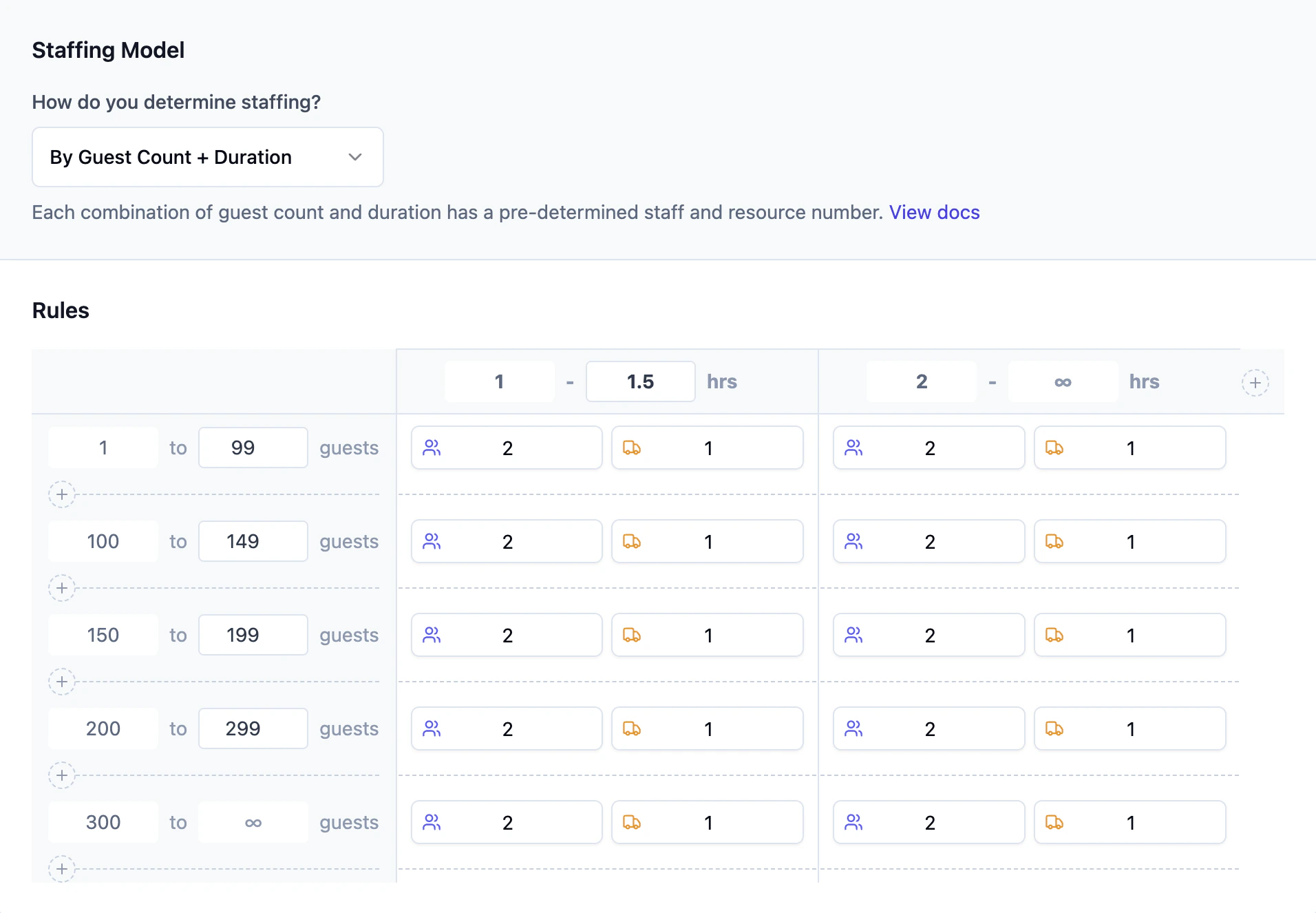
A two-dimensional table that factors in both guest count and service duration at the same time.
**How it works:**
* Define guest count ranges along the rows
* Define duration ranges along the columns
* Each cell specifies staff and resource counts for that combination
* Both the guest count and duration must match for a cell to apply
**Example:** A bartending company staffs differently based on crowd size and event length:
| | 1–2 hours | 2.5–4 hours | 4.5+ hours |
| ----------------- | --------- | ----------- | ---------- |
| **1–49 guests** | 1 staff | 1 staff | 2 staff |
| **49–150 guests** | 2 staff | 2 staff | 3 staff |
| **151+ guests** | 3 staff | 4 staff | 5 staff |
### By Guest Count + Duration
A two-dimensional table that factors in both guest count and service duration at the same time.
**How it works:**
* Define guest count ranges along the rows
* Define duration ranges along the columns
* Each cell specifies staff and resource counts for that combination
* Both the guest count and duration must match for a cell to apply
**Example:** A bartending company staffs differently based on crowd size and event length:
| | 1–2 hours | 2.5–4 hours | 4.5+ hours |
| ----------------- | --------- | ----------- | ---------- |
| **1–49 guests** | 1 staff | 1 staff | 2 staff |
| **49–150 guests** | 2 staff | 2 staff | 3 staff |
| **151+ guests** | 3 staff | 4 staff | 5 staff |
 ## Setting Up a Rule
Go to **Services**, then select the service you want to configure.
Click the **Staffing Rules** tab on the service page.
Select a mode from the dropdown: **Hourly Capacity**, **By Guest Count**, **By Duration**, or **By Guest Count + Duration**.
Fill in your ranges, capacities, or matrix values. Changes save automatically.
Go to the **Pricing** section on the service to see how the rules interact with pricing settings to build your service price.
## How Rules Apply to Quotes
When a quote is created from your lead intake form, Flashquotes resolves staffing like this:
1. For each selected service with a staffing rule, the rule runs using the guest count and duration
2. Each service's price is calculated using its own staff and resource quantities
3. The quote reflects the per-service pricing based on those calculated quantities
If a guest count or duration falls outside your defined ranges, the rule uses the **highest range** as a fallback. If your guest count table tops out at 300 and a customer enters 400, the 300+ range applies.
## Copying Rules Between Services
If multiple services share similar staffing needs, you can copy a rule configuration from one service to another:
1. Open the rules editor for the service you want to configure
2. Click **Copy from service**
3. Select the source service
4. The full rule configuration (mode, ranges, and values) is copied over
## Form-Level Fallback
The [form-level staffing calculator](/forms/staffing-calculator) uses its own hourly capacity formula to determine staff counts.
When any selected service on a lead intake form has a staffing rule configured, those **service-level rules take priority**. The form-level calculator only runs when no selected services have rules defined.
Configure rules at the service level for more accurate, flexible staffing. Form-level settings are a fallback, not the primary tool.
## Common Questions
**What if only some of my services have rules?**
Services without a defined rule will fallback to using the [form-level staffing calculator](/forms/staffing-calculator) when calculating the service price.
**Can I use different modes for different services?**
Yes. Each service has its own independent rule. One service can use Hourly Capacity while another uses By Guest Count + Duration.
**How do I remove a staffing rule from a service?**
You can just use the Hourly Capacity configuration for this service, which matches the logic of the form-level rules.
## Setting Up a Rule
Go to **Services**, then select the service you want to configure.
Click the **Staffing Rules** tab on the service page.
Select a mode from the dropdown: **Hourly Capacity**, **By Guest Count**, **By Duration**, or **By Guest Count + Duration**.
Fill in your ranges, capacities, or matrix values. Changes save automatically.
Go to the **Pricing** section on the service to see how the rules interact with pricing settings to build your service price.
## How Rules Apply to Quotes
When a quote is created from your lead intake form, Flashquotes resolves staffing like this:
1. For each selected service with a staffing rule, the rule runs using the guest count and duration
2. Each service's price is calculated using its own staff and resource quantities
3. The quote reflects the per-service pricing based on those calculated quantities
If a guest count or duration falls outside your defined ranges, the rule uses the **highest range** as a fallback. If your guest count table tops out at 300 and a customer enters 400, the 300+ range applies.
## Copying Rules Between Services
If multiple services share similar staffing needs, you can copy a rule configuration from one service to another:
1. Open the rules editor for the service you want to configure
2. Click **Copy from service**
3. Select the source service
4. The full rule configuration (mode, ranges, and values) is copied over
## Form-Level Fallback
The [form-level staffing calculator](/forms/staffing-calculator) uses its own hourly capacity formula to determine staff counts.
When any selected service on a lead intake form has a staffing rule configured, those **service-level rules take priority**. The form-level calculator only runs when no selected services have rules defined.
Configure rules at the service level for more accurate, flexible staffing. Form-level settings are a fallback, not the primary tool.
## Common Questions
**What if only some of my services have rules?**
Services without a defined rule will fallback to using the [form-level staffing calculator](/forms/staffing-calculator) when calculating the service price.
**Can I use different modes for different services?**
Yes. Each service has its own independent rule. One service can use Hourly Capacity while another uses By Guest Count + Duration.
**How do I remove a staffing rule from a service?**
You can just use the Hourly Capacity configuration for this service, which matches the logic of the form-level rules.