> ## Documentation Index
> Fetch the complete documentation index at: https://docs.flashquotes.com/llms.txt
> Use this file to discover all available pages before exploring further.
# Workflow Enrollments
> Learn how to enroll contacts in workflows and manage active enrollments
export const PlusBadge = () =>
Plus
;
## Enrolling Contacts in Workflows
### Automatic Enrollment
Contacts are automatically enrolled in workflows based on the trigger type:
* **Quote Requested**: Contacts enroll when they submit your lead intake form
* **Quote Sent**: Enroll contacts when sending quotes (toggle in send quote modal, then select a workflow)
* **Quote Booked**: Contacts enroll automatically when a quote is booked
* **First Event Start** / **Last Event End**: Bookings enroll automatically when created
### During Quote Sending
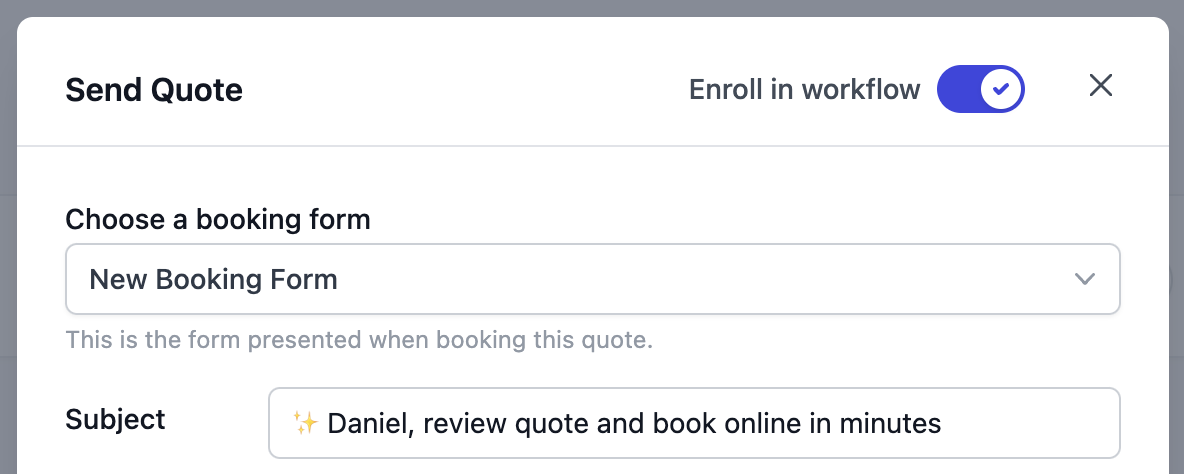
1. Navigate to the Send Quote modal when preparing to send a quote
2. At the top of the modal, locate the "Enroll in workflow" toggle
3. Enable the toggle to enroll the contact in a follow-up workflow
4. Select which workflow to use from the dropdown — your default workflow is pre-selected
5. Send the quote as normal
You can create multiple Quote Sent workflows for different follow-up strategies. Set a default workflow from the workflow detail page so it's always pre-selected when sending quotes.
 ## Bulk Enrolling Bookings
For workflows with First Event Start or Last Event End triggers, you can enroll multiple existing bookings at once. This saves time when you create a new workflow and want to include existing upcoming bookings.
**To bulk enroll bookings:**
1. Navigate to Workflows from your main navigation
2. Click on a published workflow with event-based triggers
3. Select the **Enrollments** tab
4. Click the **Enroll Upcoming Bookings** button in the top right
5. Review the list of eligible bookings
6. Select the bookings you want to enroll
7. Click **Enroll Selected**
**Eligible bookings:**
* Have at least one future event (event hasn't occurred yet)
* Are not already enrolled in this workflow
* Match the workflow's trigger type (First Event Start or Last Event End)
**What you'll see:**
* Booking name
* Event name
* Event date and time (in the location's timezone)
* Checkbox to select for enrollment
**When to use bulk enrollment:**
* You created a new workflow and want to include existing upcoming bookings
Bulk enrollment is only available for published workflows. Draft workflows must be published first before you can enroll bookings.
## Tracking Enrollments
### Workflow-Level View
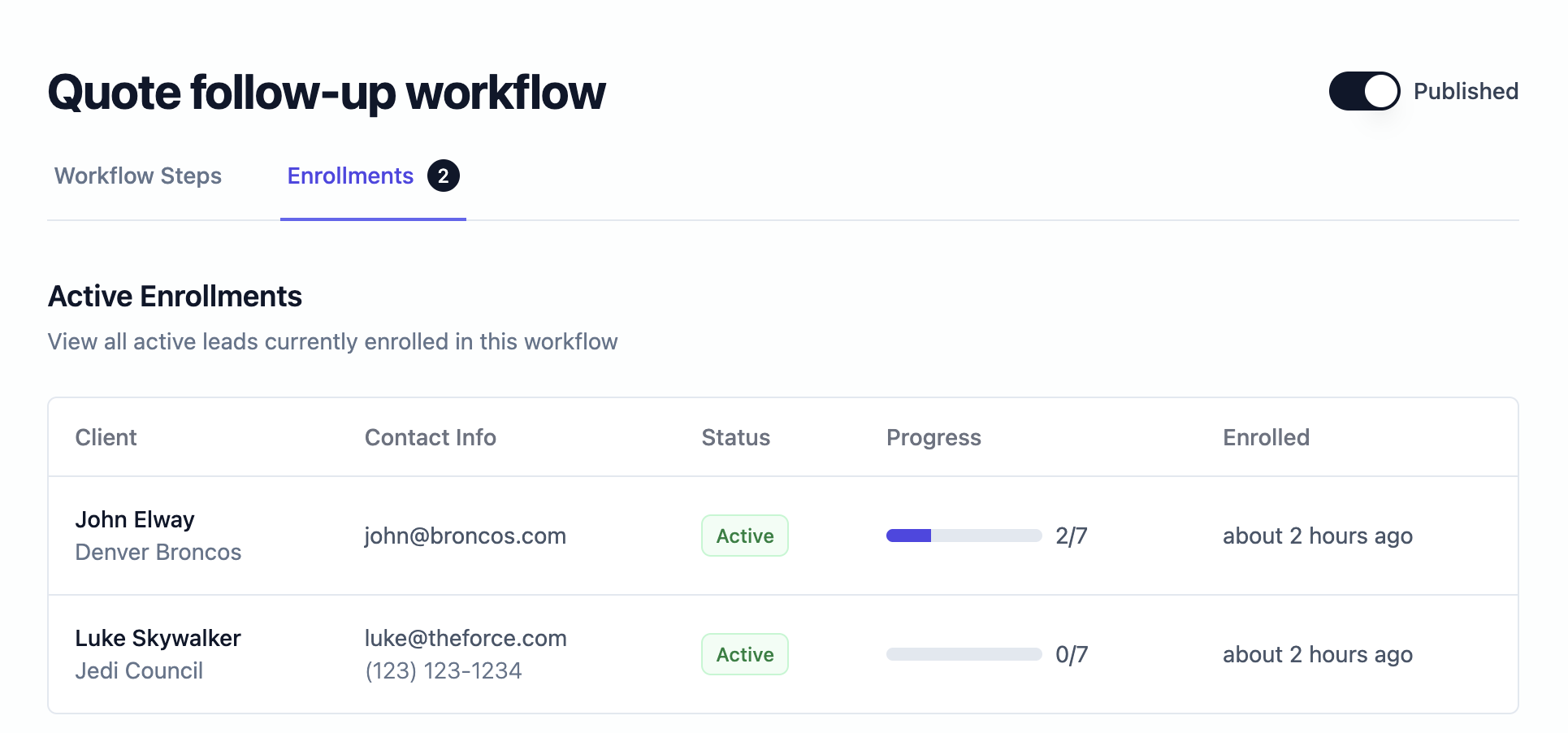
View all active enrollments for a specific workflow from the Enrollments tab in the workflow details page. This gives you a complete overview of every contact currently enrolled in that workflow.
From the Enrollments tab, you can:
* **View all active enrollments**: See every contact currently enrolled in the workflow with their name and email
* **Track progress**: See how many steps each contact has completed out of the total steps (e.g., "3/7")
* **Monitor enrollment timing**: See when each contact was enrolled (e.g., "2 days ago")
* **Quick navigation**: Click any enrollment row to jump directly to that contact's Workflows tab
**To access workflow enrollments:**
1. Navigate to Workflows from your main navigation
2. Click on any workflow to view its details
3. Select the **Enrollments** tab
4. View the table showing all active enrollments with progress bars
## Bulk Enrolling Bookings
For workflows with First Event Start or Last Event End triggers, you can enroll multiple existing bookings at once. This saves time when you create a new workflow and want to include existing upcoming bookings.
**To bulk enroll bookings:**
1. Navigate to Workflows from your main navigation
2. Click on a published workflow with event-based triggers
3. Select the **Enrollments** tab
4. Click the **Enroll Upcoming Bookings** button in the top right
5. Review the list of eligible bookings
6. Select the bookings you want to enroll
7. Click **Enroll Selected**
**Eligible bookings:**
* Have at least one future event (event hasn't occurred yet)
* Are not already enrolled in this workflow
* Match the workflow's trigger type (First Event Start or Last Event End)
**What you'll see:**
* Booking name
* Event name
* Event date and time (in the location's timezone)
* Checkbox to select for enrollment
**When to use bulk enrollment:**
* You created a new workflow and want to include existing upcoming bookings
Bulk enrollment is only available for published workflows. Draft workflows must be published first before you can enroll bookings.
## Tracking Enrollments
### Workflow-Level View
View all active enrollments for a specific workflow from the Enrollments tab in the workflow details page. This gives you a complete overview of every contact currently enrolled in that workflow.
From the Enrollments tab, you can:
* **View all active enrollments**: See every contact currently enrolled in the workflow with their name and email
* **Track progress**: See how many steps each contact has completed out of the total steps (e.g., "3/7")
* **Monitor enrollment timing**: See when each contact was enrolled (e.g., "2 days ago")
* **Quick navigation**: Click any enrollment row to jump directly to that contact's Workflows tab
**To access workflow enrollments:**
1. Navigate to Workflows from your main navigation
2. Click on any workflow to view its details
3. Select the **Enrollments** tab
4. View the table showing all active enrollments with progress bars
 This view is especially useful for Quote Requested workflows where enrollments happen automatically, giving you visibility into how many contacts are receiving your automated sequences and how far they've progressed through the steps.
### Quote-Level View
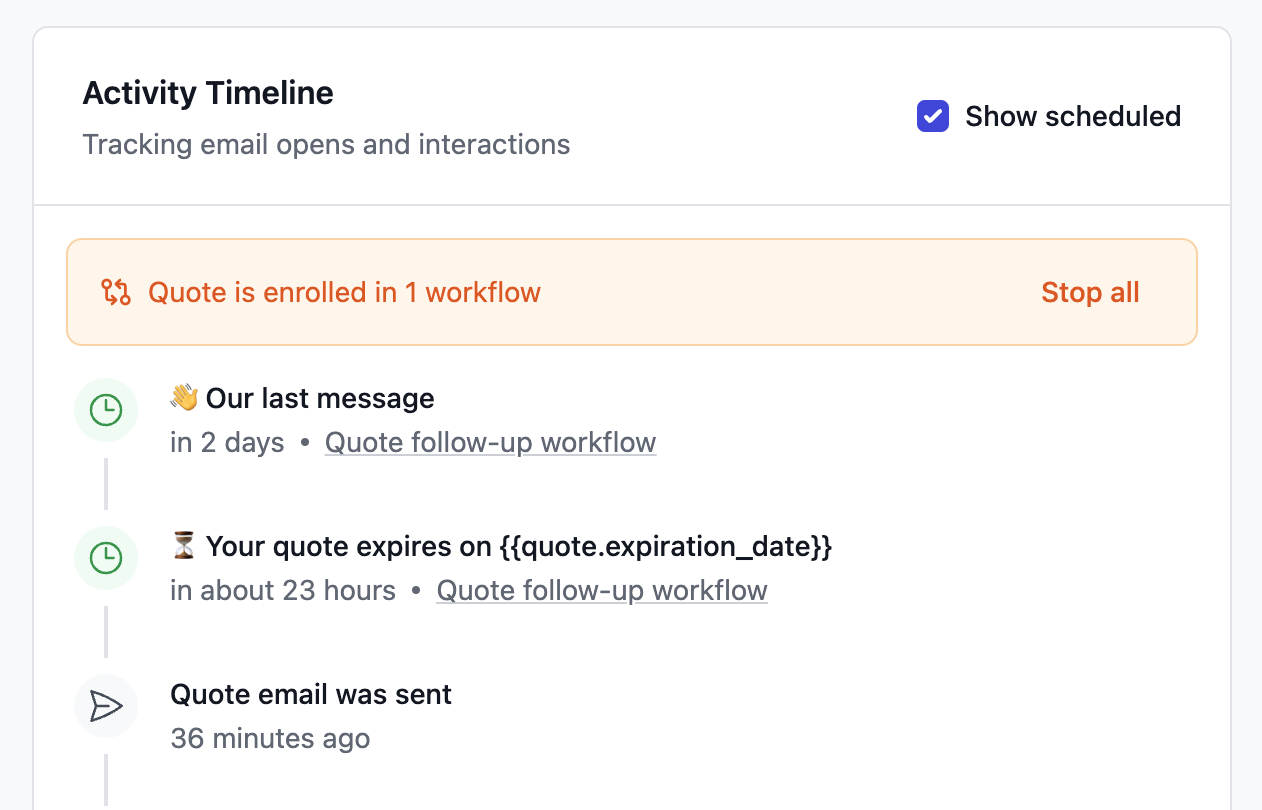
From the quote details page, you can:
* See a banner showing how many workflows the quote is enrolled in
* View all scheduled emails for active workflows
* Preview the content of upcoming scheduled messages
* Click **Stop all** to stop all workflows for the quote with a single click
This view is especially useful for Quote Requested workflows where enrollments happen automatically, giving you visibility into how many contacts are receiving your automated sequences and how far they've progressed through the steps.
### Quote-Level View
From the quote details page, you can:
* See a banner showing how many workflows the quote is enrolled in
* View all scheduled emails for active workflows
* Preview the content of upcoming scheduled messages
* Click **Stop all** to stop all workflows for the quote with a single click
 ### Contact-Level View
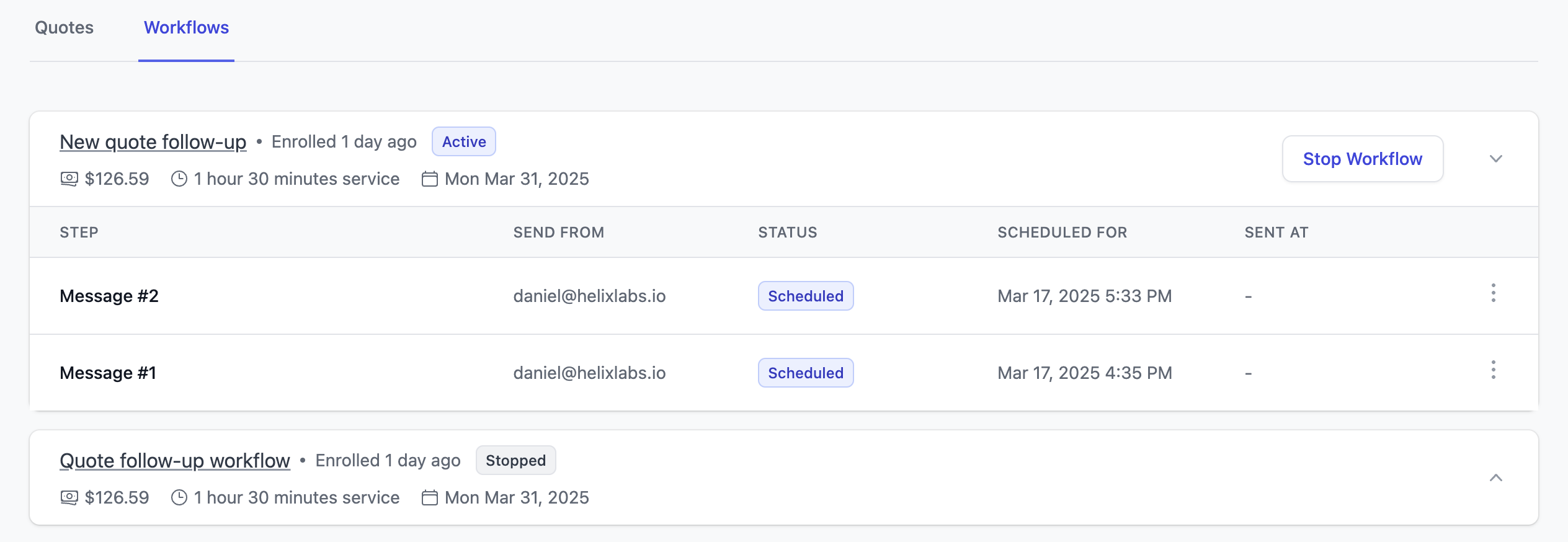
The Contact Details View includes a dedicated Workflows tab that shows:
* **Active Workflows**: Currently running sequences
* **Completed Workflows**: Successfully finished sequences
* **Canceled Workflows**: Manually stopped sequences
From this view, you can:
* Stop individual or multiple workflows
* Preview scheduled email content
* Access workflow templates for editing
* Track the progress of each enrollment
### Contact-Level View
The Contact Details View includes a dedicated Workflows tab that shows:
* **Active Workflows**: Currently running sequences
* **Completed Workflows**: Successfully finished sequences
* **Canceled Workflows**: Manually stopped sequences
From this view, you can:
* Stop individual or multiple workflows
* Preview scheduled email content
* Access workflow templates for editing
* Track the progress of each enrollment
 ### Contact Quote List
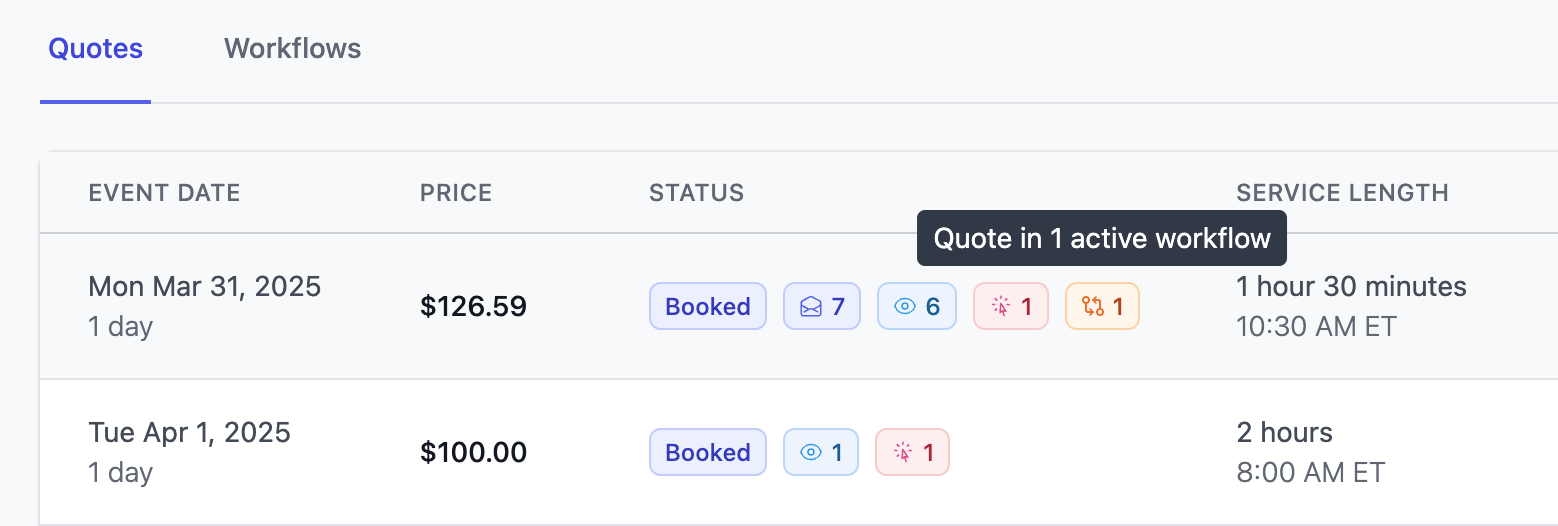
Within the quotes tab in the contact details view, you can easily identify quotes enrolled in a workflow with orange workflow enrollment icon and counter
### Contact Quote List
Within the quotes tab in the contact details view, you can easily identify quotes enrolled in a workflow with orange workflow enrollment icon and counter
 ## Managing Active Workflows
### Stopping Workflows
You may want to stop an active workflow because the contact has replied and is engaging with your team or because they've said they no longer need your services.
You can stop workflows in several ways:
1. **From Quote View**:
* Click "Stop all" in the workflow banner to stop all active workflows
The "Stop all" button stops workflow enrollments for this specific quote only.
It does not affect workflow enrollments for other quotes this contact may have.
2. **From Contact Workflows Tab**:
* Select individual workflows to stop
* You can easily click **Stop Workflow** on all active workflow for this contact
### Resuming Stopped Workflows
If you've stopped a workflow but want to restart the automated follow-up sequence, you can easily resume it:
1. Navigate to the **Contact Workflows Tab** in the contact details view
2. Locate the stopped workflow in the "Canceled Workflows" section
3. Click the **Resume Workflow** button (only visible if there are future scheduled steps)
4. The workflow will reactivate and continue sending scheduled emails
You can only resume a workflow if it has scheduled steps in the future. Workflows that have completed all their steps cannot be resumed.
**When to Resume Workflows:**
* The contact initially showed no interest but has now re-engaged
* You accidentally stopped a workflow too early
* The contact requested more time to consider and now wants to continue receiving information
* A communication misunderstanding has been resolved
### Automatically Stopping Workflows
When a contact books a quote, all active workflows for that contact will be stopped automatically
This includes workflows across multiple quotes that may be active
This automatic stopping ensures you maintain a professional relationship with your contacts and don't continue sending sales-focused follow-ups after they've already decided to work with you.
If a contact engages with you **before** booking, all active workflows will
continue until you stop them manually.
## Best Practices
* Regularly review active workflows to ensure relevance
* Stop workflows if direct engagement begins with the contact
* Monitor email analytics to optimize workflow effectiveness
## Managing Active Workflows
### Stopping Workflows
You may want to stop an active workflow because the contact has replied and is engaging with your team or because they've said they no longer need your services.
You can stop workflows in several ways:
1. **From Quote View**:
* Click "Stop all" in the workflow banner to stop all active workflows
The "Stop all" button stops workflow enrollments for this specific quote only.
It does not affect workflow enrollments for other quotes this contact may have.
2. **From Contact Workflows Tab**:
* Select individual workflows to stop
* You can easily click **Stop Workflow** on all active workflow for this contact
### Resuming Stopped Workflows
If you've stopped a workflow but want to restart the automated follow-up sequence, you can easily resume it:
1. Navigate to the **Contact Workflows Tab** in the contact details view
2. Locate the stopped workflow in the "Canceled Workflows" section
3. Click the **Resume Workflow** button (only visible if there are future scheduled steps)
4. The workflow will reactivate and continue sending scheduled emails
You can only resume a workflow if it has scheduled steps in the future. Workflows that have completed all their steps cannot be resumed.
**When to Resume Workflows:**
* The contact initially showed no interest but has now re-engaged
* You accidentally stopped a workflow too early
* The contact requested more time to consider and now wants to continue receiving information
* A communication misunderstanding has been resolved
### Automatically Stopping Workflows
When a contact books a quote, all active workflows for that contact will be stopped automatically
This includes workflows across multiple quotes that may be active
This automatic stopping ensures you maintain a professional relationship with your contacts and don't continue sending sales-focused follow-ups after they've already decided to work with you.
If a contact engages with you **before** booking, all active workflows will
continue until you stop them manually.
## Best Practices
* Regularly review active workflows to ensure relevance
* Stop workflows if direct engagement begins with the contact
* Monitor email analytics to optimize workflow effectiveness