

Overview
The Pipeline is your working view of every open quote — organized into stages so you always know what needs attention next. Each card is a quote (a contact with multiple quotes appears once per quote), and cards move through the pipeline as you work them from new inquiry to booked.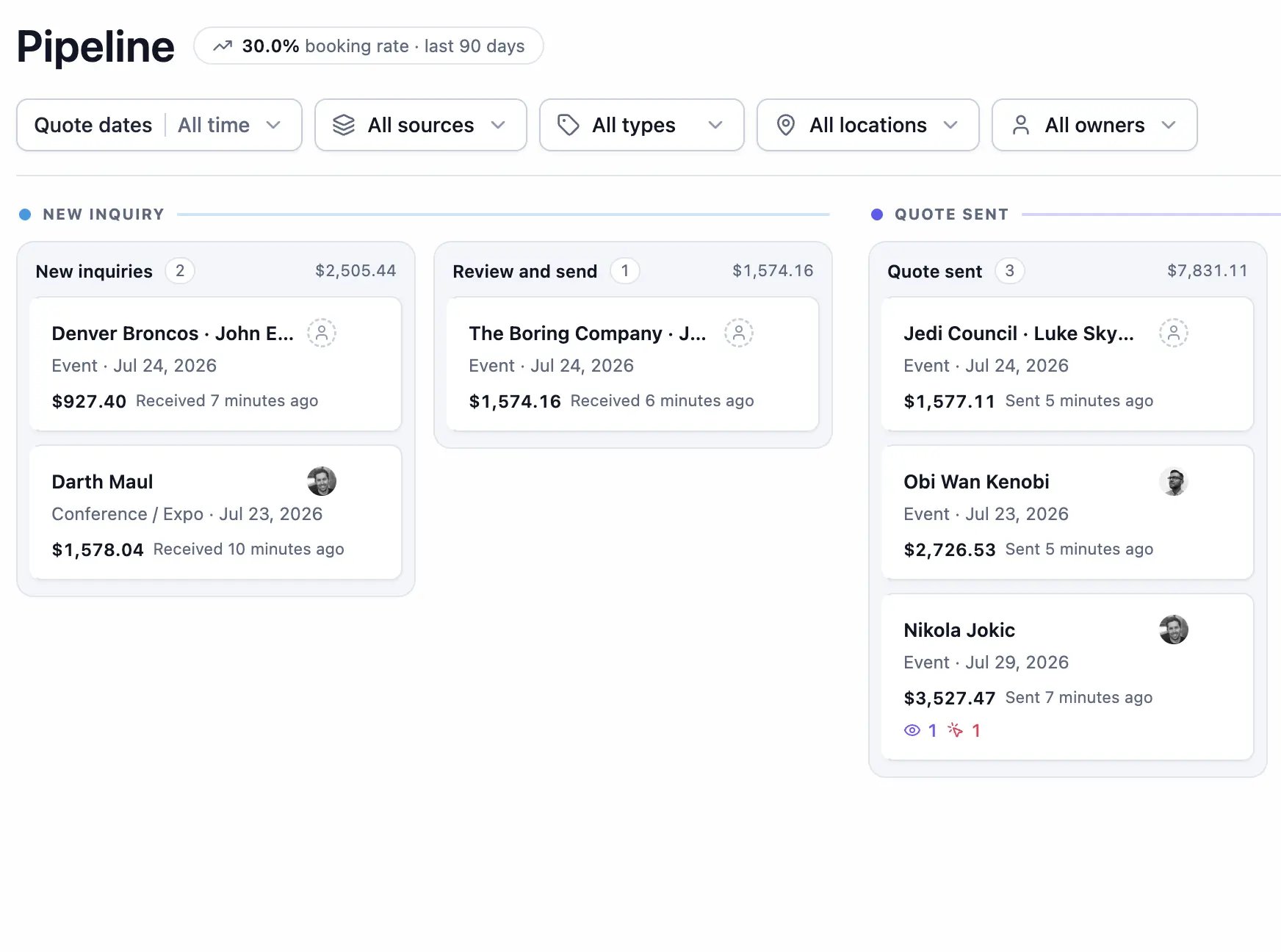
Looking for people instead of quotes? Every client lives on the
Contacts page — the Pipeline focuses on the quotes you’re
working to get booked.
Stages
Quotes move through four groups:- New inquiry — quote requests that haven’t been sent yet
- Quote sent — quotes delivered to the client, awaiting a decision
- Booked — quotes the client accepted
- Lost — quotes you’ve closed out
Moving quotes
Drag a card to move it between stages within the same group. Quotes advance between groups on their own — sending a quote moves it to Quote sent, and a booking moves it to Booked — so the board always reflects reality. While dragging, a Mark as lost drop zone appears at the bottom of the screen. Drop a card there to close it out with an optional reason — Price, Date unavailable, Went silent, Chose someone else, or Other. Lost quotes are never deleted; find them anytime under the Lost filter.Inquiries found by Flashquotes AI
With Gmail connected, Flashquotes AI flags emails that ask for a quote for an upcoming event. Suggestions sit at the top of the default New inquiry column and count toward its total. Click one to review it, then build the quote or discard it. If Gmail isn’t connected, the column shows a Connect with Google card instead. Set up lead detection →Custom stages
Click Edit stages to tailor the board to how you actually work — for example, splitting Quote sent into “In revision” and “Verbal yes.”- Add, rename, reorder, and delete stages within New inquiry and Quote sent
- Deleting a stage prompts you to pick a destination for its quotes
- Booked and Lost are managed for you and can’t be customized
Quote cards
Each card surfaces what you need to decide your next move:- Contact name and owner avatar (click the avatar to reassign)
- Event summary — event type and date
- Quote total — including service charges, discounts, and tax
- Latest activity — “Sent 3 days ago,” “Emailed…” — the line turns amber, then red, as a quote sits idle so follow-ups don’t slip
- Engagement icons — email opens, quote views, and Book Now clicks
- A 🔥 flame marks hot quotes — the client engaged in the last 24 hours, so strike while the interest is fresh
- An Expired badge when the quote has passed its expiration date
Board and list views
Toggle between the kanban Board and a List view from the header — your choice is remembered. The list shows Contact, Event, Stage, Quote, Latest activity, Engagement, and Owner columns, which is handy for scanning a large pipeline or sorting by a single column.Sorting and filtering
Sort the pipeline by:- Needs attention (default) — most urgent first
- Event date — soonest first
- Quote value — highest first
- Created — newest first
Filters
Click the dashed Filter button to add a filter. Once one is applied, the button becomes Add filter and each active filter shows as a pill you can click to edit or remove with the ×. Filters combine, so adding more narrows the board further. Available dimensions:- Quote date — when the quote was created
- Event date — when the event happens
- Source — where the lead came from
- Event type
- Location — shown when your company has more than one
- Owner — shown when you can filter by owner