

Open a shift
Each shift has a row showing its name, staff, tasks, and a bar of its steps. Every row uses the same clock, so service lines up across shifts.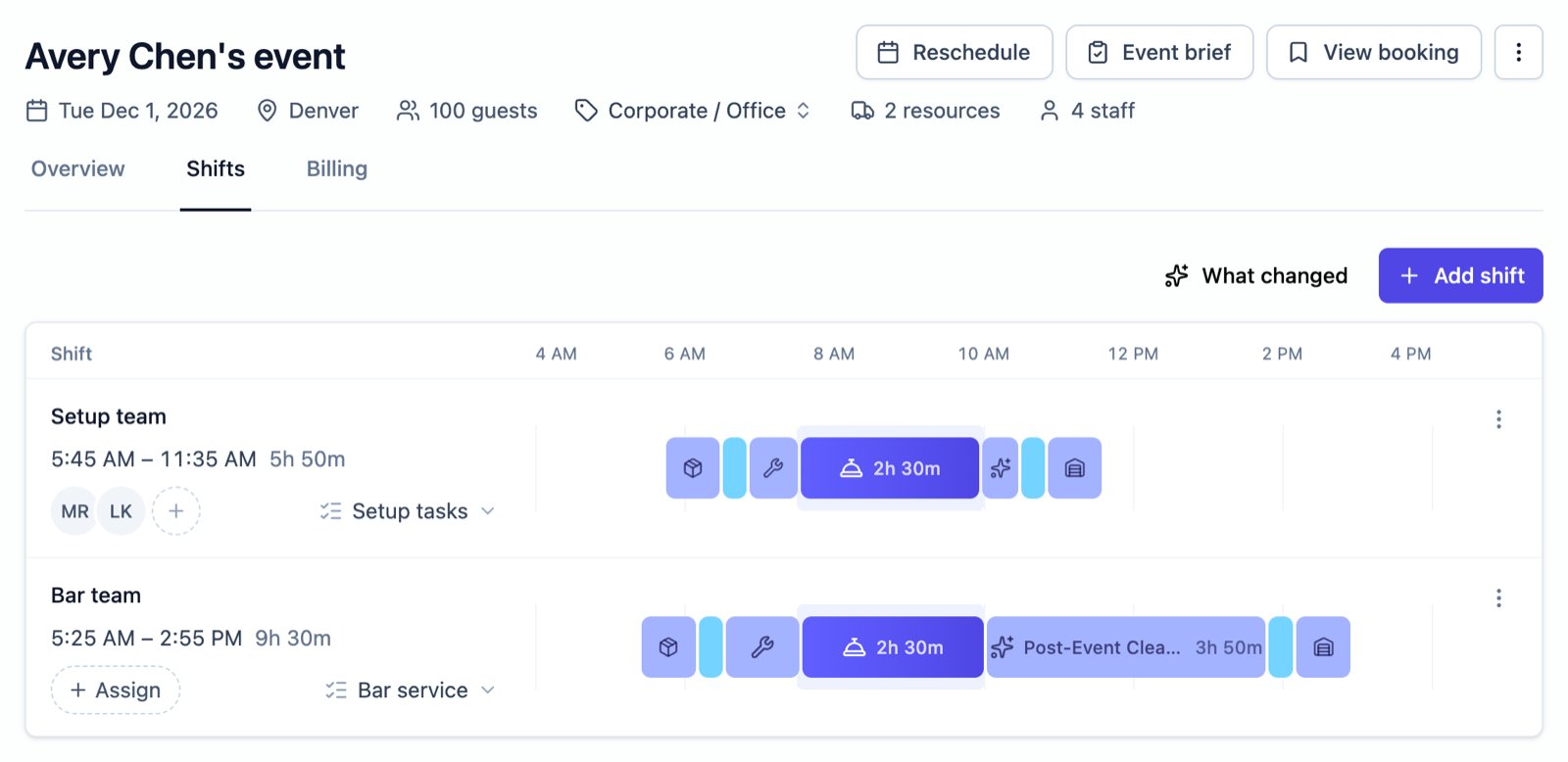
- Timeline shows when the shift starts and ends, and how long each step takes.
- Tasks lists what the team does at each step. See Shift tasks.
- Settings holds staff needed, who’s assigned, and shift notes.
Adjust the timeline
A shift has seven steps:
Steps before Service end when service starts. Steps after it begin when service ends.
To change a step’s length:
- Open the shift’s Timeline tab.
- Click the step’s length.
- Pick a preset, click − or +, or type a new length.
- Prep, setup, cleanup, and unload belong to the shift. A change only affects this shift.
- Travel comes from Google Maps. Flashquotes uses the drive from your location’s address to the event address, with traffic for that time of day. Every shift on the event shares the drive times.
- Service is the hours booked with the customer. Click it, then Edit service hours to change them for every shift.
Skip a step
Turn off a step’s switch to skip it. A skipped step takes no time. Its tasks stay on the shift, but staff don’t see them until you turn the step back on. Example: A drop-off team turns off Service and Post-Event Cleanup. Once setup is done, they drive back and unload.Rename a step
Click a step’s name and type a new one, up to 40 characters. For example, rename Service to “Bar open.” Staff see the new name on the event brief.Assign staff
- Open the shift’s Settings tab.
- Set Staff needed.
- Click Add staff and pick someone.
Add a shift
- Click Add shift.
- Pick a Shift template. The name fills in from the template, and you can change it.
- Under Tasks from, pick a checklist or No tasks.
- Click Add shift.
Other shift actions
Open the three-dot menu on a shift’s row:- View in event brief opens the brief on this shift.
- Duplicate shift adds a copy you can change.
- Apply a shift template replaces the timeline. Tasks, staff, and notes stay.
- Save as shift template saves the timeline to Settings > Shift templates. Tasks aren’t saved.
- Delete shift removes the shift and takes its staff off it. You choose whether to delete its tasks or move them to another shift.
Where shifts come from
When a booking is created, each event gets one shift for every shift template and checklist pair its services use. A service uses the pair set in its Shifts card, or your company defaults. Set a service’s default shift and checklist → The booking’s staff count is split evenly across the shifts. Any extra goes to the first shift, and each shift needs at least 1. Example: A booking has a bar service and a coffee cart, each with its own shift template, and needs 5 staff. The event starts with two shifts: 3 staff on the first and 2 on the second. The Event schedule card on the Overview tab runs from the earliest shift start to the latest shift end. Calendar shift times use the same span.Common issues
- Shift is many hours long: check the travel times. A wrong event address can add hours of driving.
- Travel didn’t update after a change: the event may already be in the past. Set the drive times by hand.
- Can’t delete a shift: every event needs at least one shift.