

Overview
The Flashquotes quote page is designed to help you convert more leads into paying customers. With a modern e-commerce inspired design and powerful conversion features, it can help you achieve:- Higher booking rates through trust-building social proof
- Increased average order value with dynamic add-on selection
- Reduced cart abandonment with real-time availability indicators
- Better customer experience with a mobile-optimized, professional design
Using Quote Templates
Every company gets one default quote template that is fully customizable. Pro plan users can create multiple templates for different event types, services, or branding variations. Each template can have its own gallery images, testimonials, add-ons, and other visual elements.Learn how to create and manage quote templates in our Quote Templates guide. Upgrade to Pro for multiple templates.
Assigning a Template to a Quote
- Open any quote detail page
- Click on the Quote Template tab
- Select a template from the dropdown
- The quote will automatically update to use the selected template
Video Tutorial
Watch our step-by-step tutorial on setting up your quote page:The Customer Experience
See the modern, professional experience your customers will enjoy: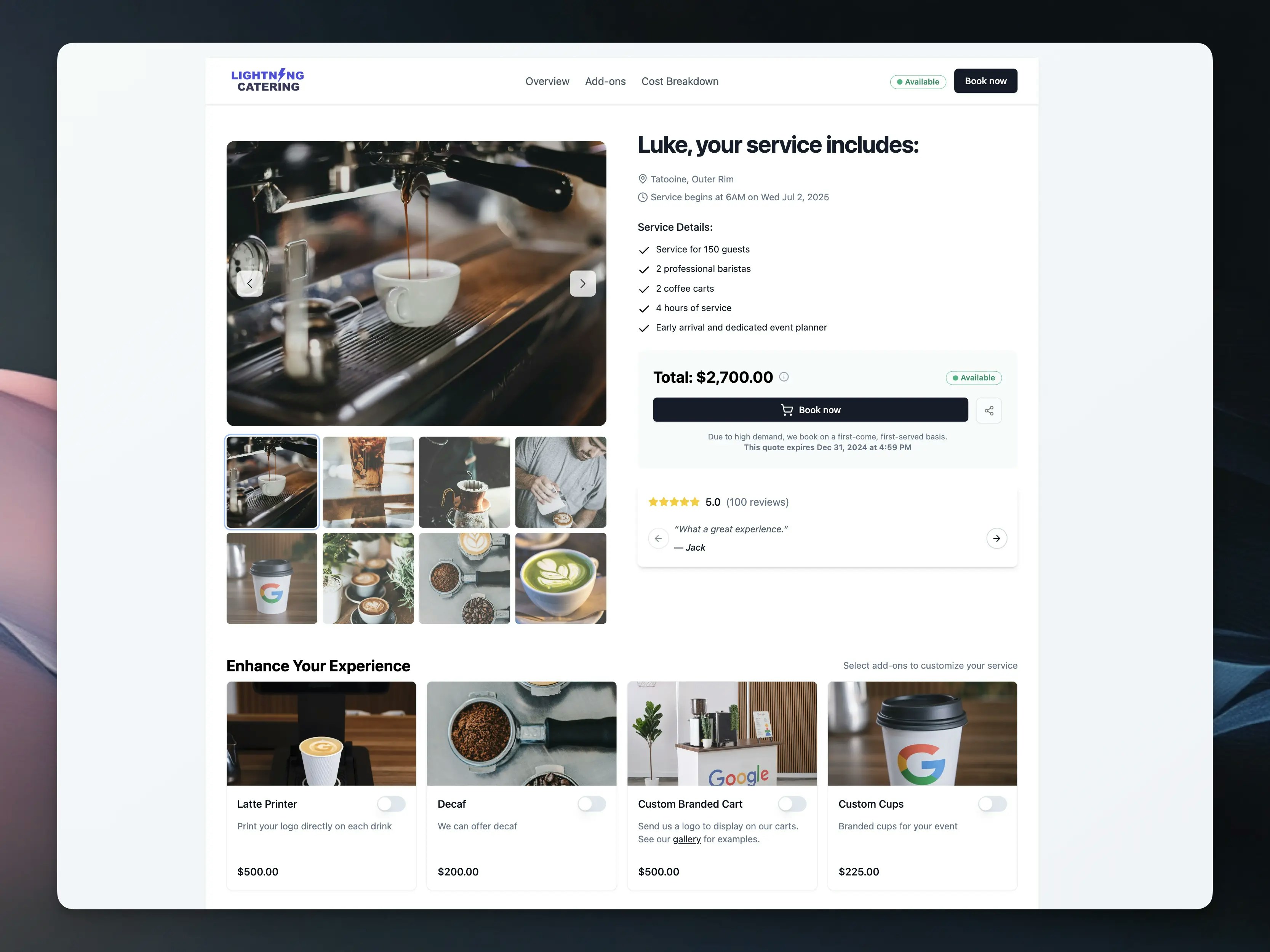
📈 Proven Conversion Boosters
Rich Photo Gallery
Rich Photo Gallery
Showcase up to 8 high-quality images of your services to build trust and showcase your work quality.
Social Proof Widget
Social Proof Widget
Dynamic Add-on Picker
Dynamic Add-on Picker
Enable customers to customize their package with last-minute upgrades,
increasing your average order value.
Real-time Availability
Real-time Availability
Create urgency with live availability status indicators to reduce booking
hesitation.
Professional Design
Professional Design
Build trust with an e-commerce style checkout experience that looks great on all devices.
🎯 Key Benefits
- Modern, mobile-responsive design that looks great on all devices
- Increased customer confidence through social validation
- Higher average order values through strategic add-on placement
- Reduced friction in the booking process
Getting Started
Step 1: Access Quote Templates
Step 2: Configure Your Quote Template
The visual editor allows you to customize every aspect of your quote page. See our Quote Templates guide for detailed instructions on configuring templates.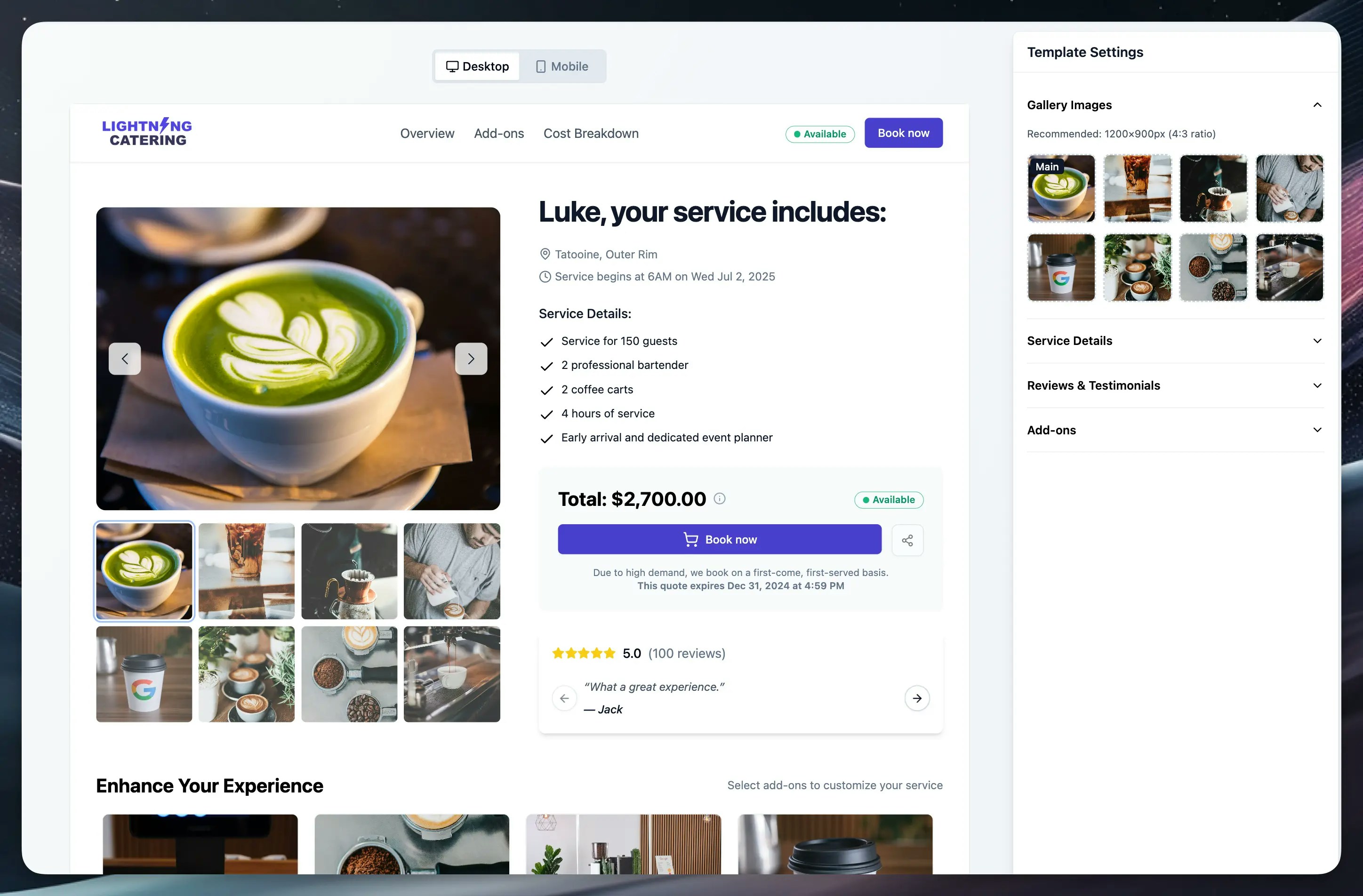
Configuring Quote Template Features
📸 Gallery Images
The gallery is one of the most impactful features for building trust and showcasing your services.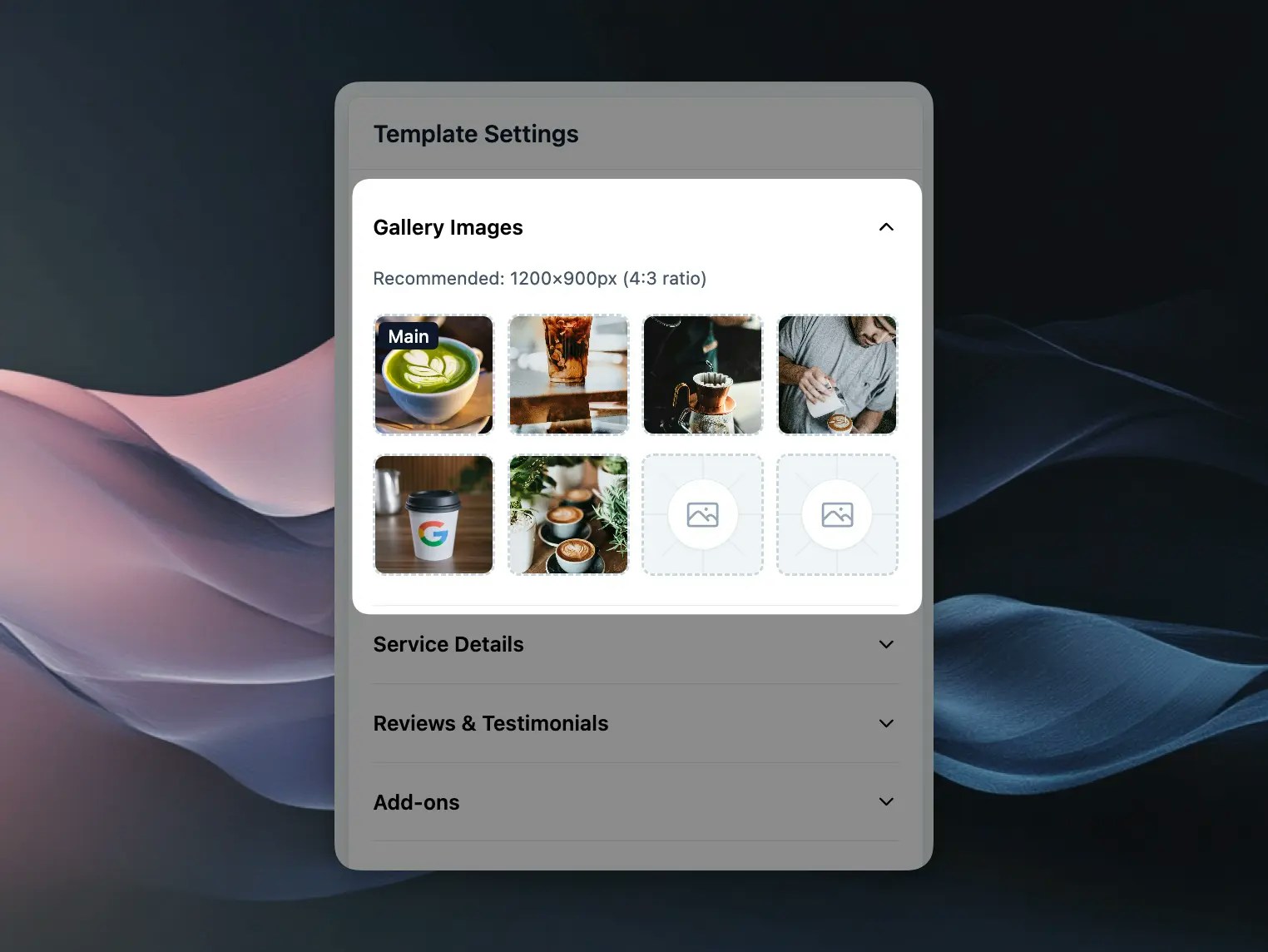
Setting Up Your Gallery
Setting Up Your Gallery
- In the template editor, find the Gallery Images section
- Click on any of the 8 image slots
- Select an image from your media library or upload a new one
- The first image (top-left) will be marked as “Main” and displayed prominently
Best Practices
Best Practices
- Use high-quality images at 1200×900px (4:3 ratio) for best results
- Include a mix of:
- Final service results
- Your team in action
- Equipment and setup shots
- Happy customers (with permission)
- Update images seasonally to keep content fresh
✅ Service Details
Help customers understand exactly what’s included in their quote with dynamic service details.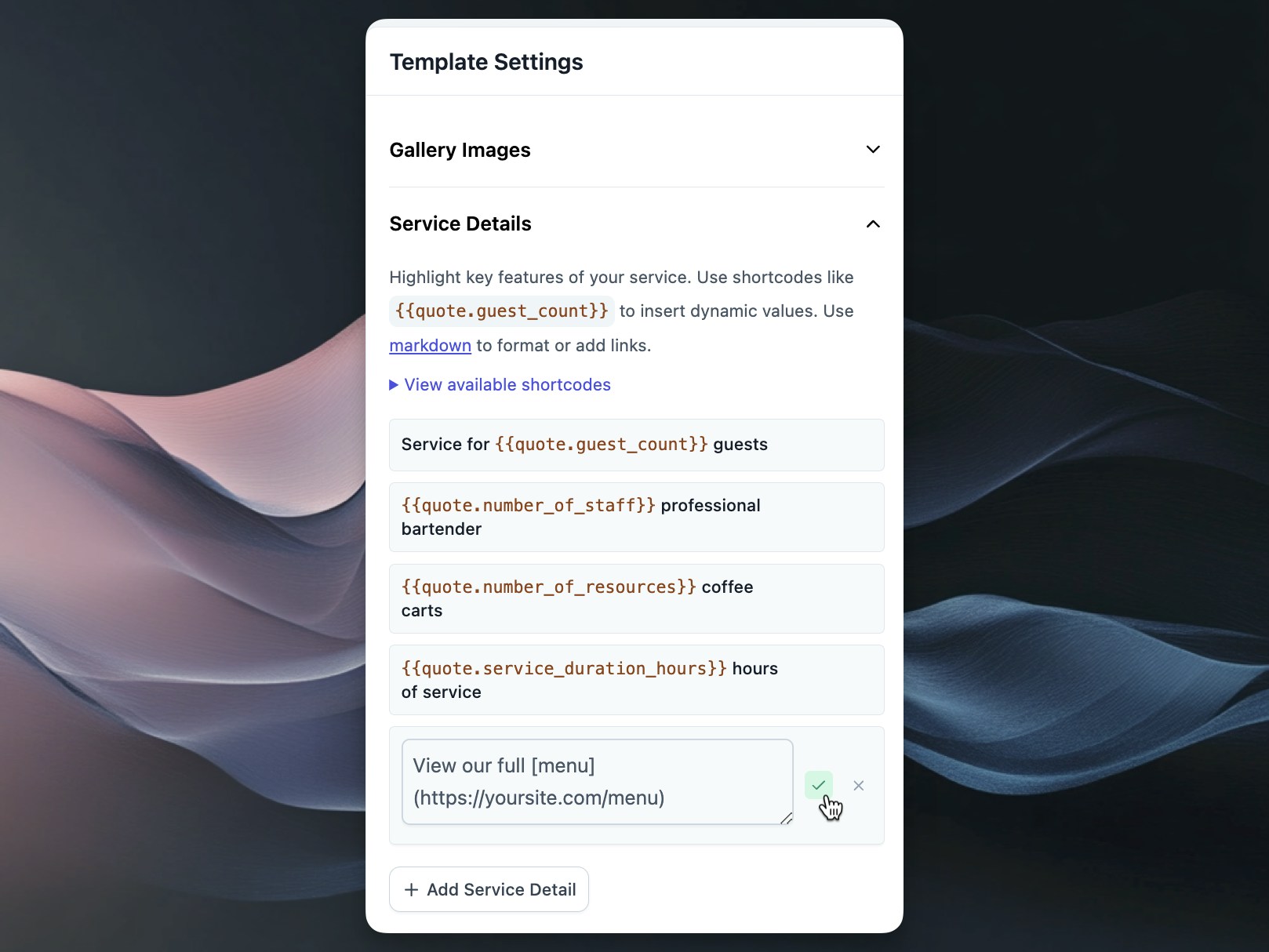
Configuring Service Details
Configuring Service Details
- Open the Service Details section
- Click “Add Service Detail” to create a new item
- Use plain text or markdown formatting for rich content
- Include dynamic values with shortcodes
Available Shortcodes
Available Shortcodes
{{quote.guest_count}}- Number of guests{{quote.staff_count}}- Number of staff{{quote.service_duration_hours}}- Total service duration across all days{{quote.daily_service_duration_hours}}- Average service duration per day{{quote.event_address}}- Event location
Example Service Details
Example Service Details
- “Professional service for
{{quote.guest_count}}guests” - “
{{quote.staff_count}}experienced staff members” - “All equipment and supplies included”
- “
[View our safety protocols](https://yoursite.com/safety)”
⭐ Reviews & Testimonials
Social proof is crucial for building trust with potential customers.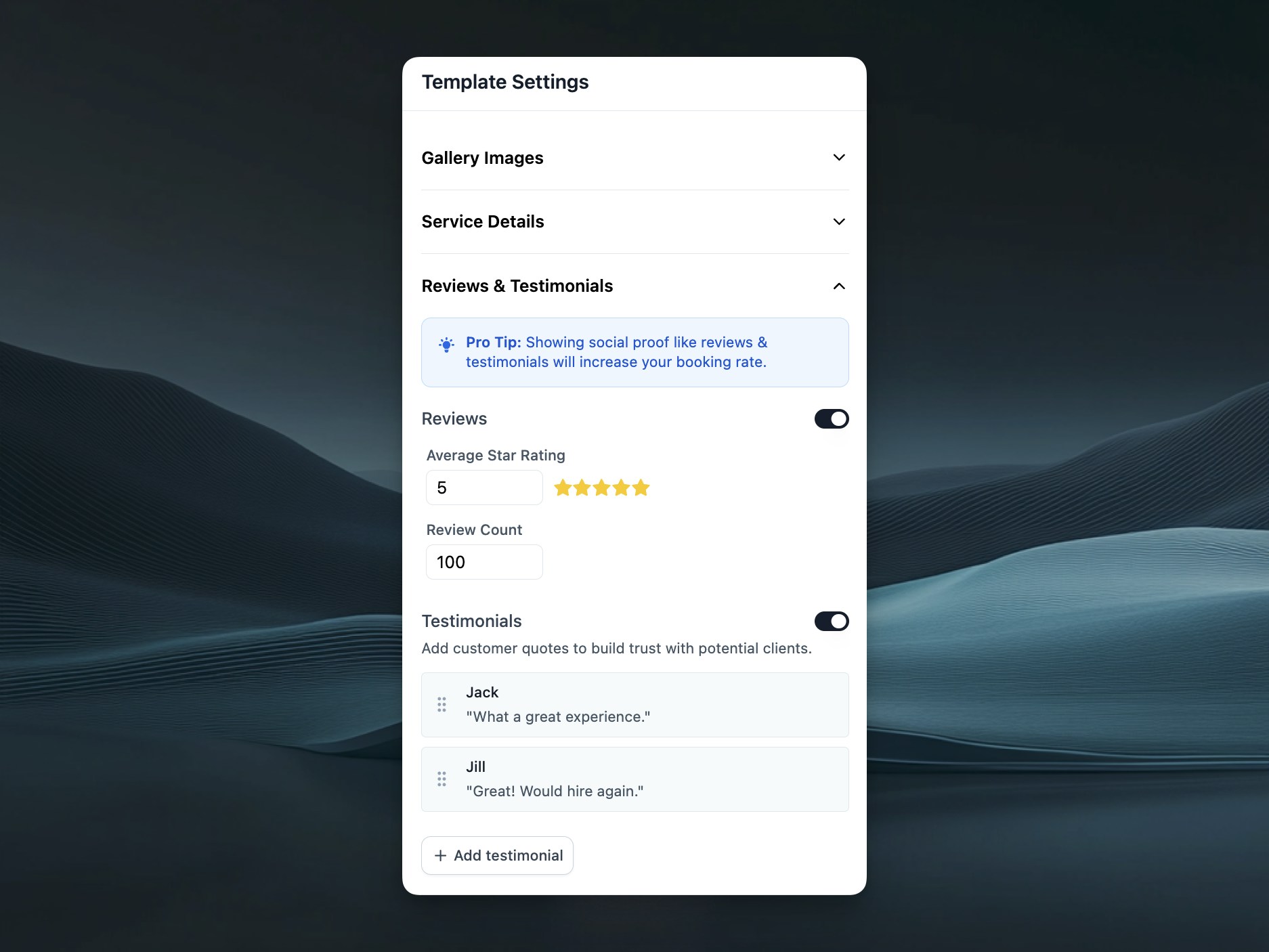
Setting Up Reviews
Setting Up Reviews
- In the Reviews & Testimonials section, toggle “Reviews” on
- Set your average star rating (e.g., 4.8)
- Enter your total review count (e.g., 1,348)
Adding Testimonials
Adding Testimonials
- Click “Add testimonial” 2. Enter the customer quote and name 3. Drag to reorder testimonials 4. Add 3-5 compelling testimonials for best results
Pro Tips
Pro Tips
- Use specific, detailed testimonials that mention results
- Include the customer’s first name and last initial
- Rotate testimonials periodically to keep them current
💰 Add-ons (optional)
Add-ons are your opportunity to increase average order value while providing valuable options to customers.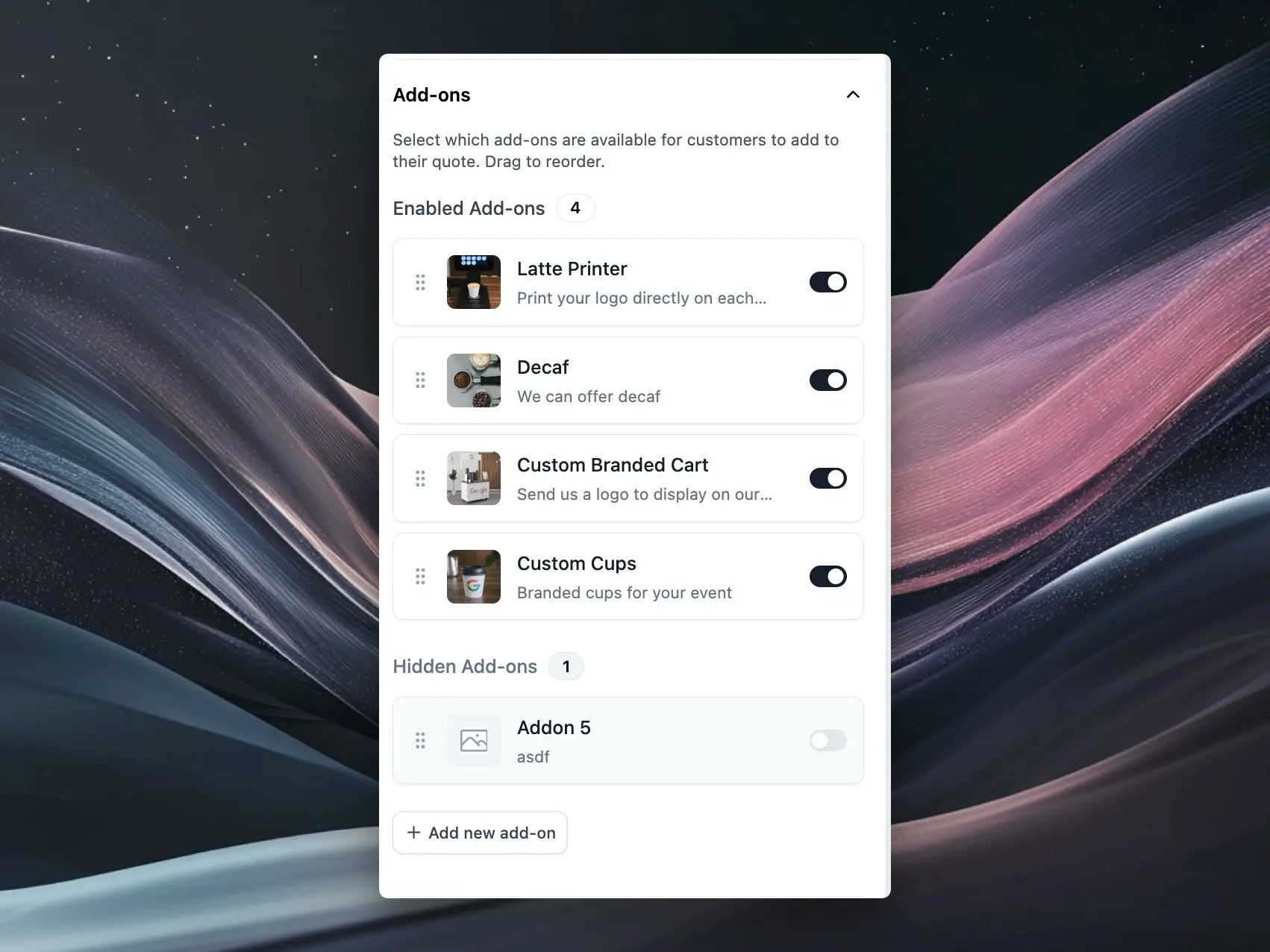
Managing Add-ons
Managing Add-ons
- In the Add-ons section, you’ll see all your created add-ons
- Toggle add-ons on/off to control visibility
- Click the edit icon to update add-on details
Reorder Add-ons
Reorder Add-ons
In the form builder, drag and drop add-ons to change their display order. The order you set here affects how add-ons appear to customers on their quote page. Put your most popular or highest-value add-ons first to maximize visibility.
Customer Quantity Control
Customer Quantity Control
For per-unit add-ons, customers can adjust quantities directly on the quote page:
- Use the + and - buttons to increase or decrease quantities
- Quantity limits (if set in your add-on configuration) are automatically enforced
- Pricing updates in real-time as customers adjust quantities
- Works seamlessly on both desktop and mobile devices
Creating Effective Add-ons
Creating Effective Add-ons
- Use clear, benefit-focused names - Include appetizing photos - Price strategically (not too high to deter, not too low to devalue) - Limit to 4-8 options to avoid overwhelming customers
Dynamic Pricing Options
Dynamic Pricing Options
When creating or editing add-ons, you can set pricing that automatically adjusts based on:
- Number of guests
- Service duration
- Number of days
- Number of resources/staff
📅 Service Days Management
The quote template supports multi-day events through service days. Each service day can have its own date and time.Multi-Day Event Support
Multi-Day Event Support
- Add multiple service days to a single quote
- Each service day can have different dates and times
- Perfect for wedding weekends, corporate events, and festivals
- When booked, each service day becomes a separate event
Flexible Scheduling
Flexible Scheduling
- Set different start and end times for each day
- Handle timezone conversions automatically
- Support for overnight events and multi-day setups
- Real-time availability checking for each service day
Easy Management
Easy Management
- Edit service days directly in the quote editor
- Add new days with one click
- Remove days as needed (minimum one day required)
- All changes sync automatically with your booking system
Service days are managed in the quote editor, not the template editor. Each service day displays its specific date and time on the customer-facing quote page.
Mobile vs Desktop Preview
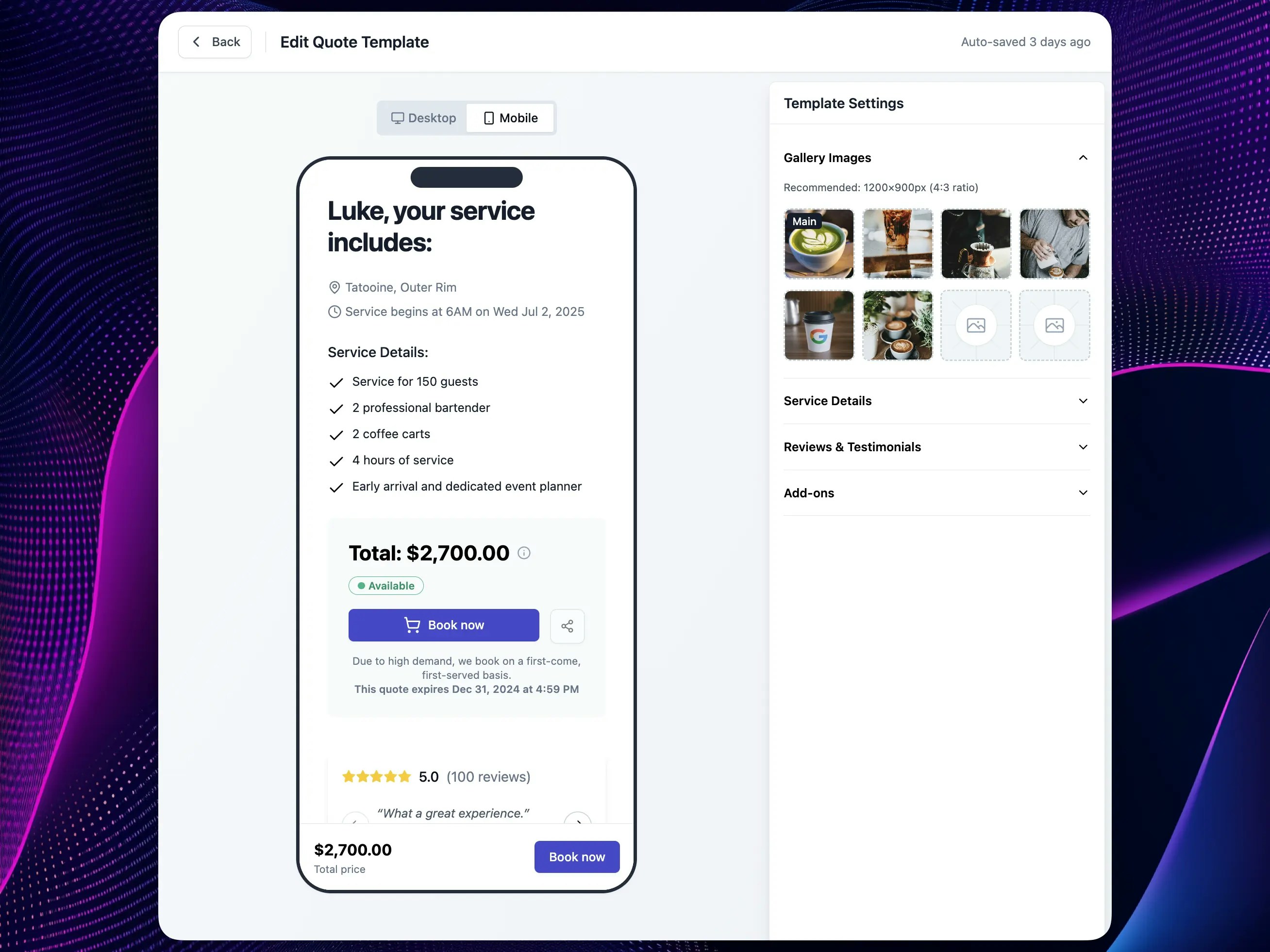
The template editor includes preview modes to ensure your quote looks perfect on all devices:- Desktop Mode: Full-width layout with side-by-side content
- Mobile Mode: Optimized single-column layout with sticky booking button
Best Practices for Maximum Conversions
Complete Every Section
Complete Every Section
A fully configured quote page builds more trust than one with missing elements.
Use High-Quality Visuals
Use High-Quality Visuals
Professional photos are worth the investment - they directly impact booking
rates.
Keep Content Fresh
Keep Content Fresh
Update testimonials, images, and service details regularly to maintain
relevance.
Test Your Add-ons
Test Your Add-ons
Monitor which add-ons get selected most and optimize your offerings
accordingly.
Leverage Urgency
Leverage Urgency
The real-time availability indicator creates natural urgency - ensure your availability settings are accurate.
Download & Print Quotes
Save any quote as a PDF for offline sharing or printing.- Open a quote from the quotes page
- Click the menu icon (three dots) in the top right
- Select Download PDF to save the file, or Print to send it to your printer
Frequently Asked Questions
Can I preview my changes before they go live?
Can I preview my changes before they go live?
Yes, the template editor shows a real-time preview of your quote page as you
make changes.
Do I need to recreate my add-ons?
Do I need to recreate my add-ons?
No, your existing add-ons work seamlessly - just choose which ones to
display.
Is the quote template mobile-friendly?
Is the quote template mobile-friendly?
Absolutely! The template is fully responsive and optimized for mobile booking.
Need Help?
If you have questions or need assistance setting up your quote template:- Contact our support team via the chat widget in the bottom right corner
- Book a free setup consultation with our success team
Next Steps
Ready to boost your booking rate?- Create and manage quote templates
- Configure your gallery images and testimonials
- Set up your add-ons for maximum conversion
- Test the mobile and desktop experience
Learn more about creating quotes and sending
quotes to make the most of your quote templates.