

Overview
The Booking Flow controls how customers complete their booking after accepting your quote. Configure which booking form collects customer information and which payment terms apply directly from the quote editor.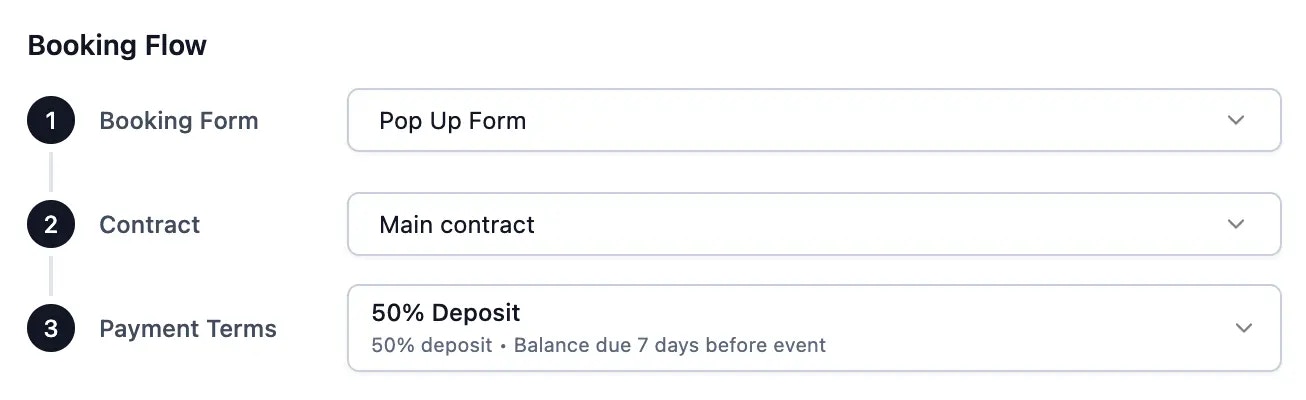
How It Works
The booking flow consists of three steps:- Booking Form - The form customers complete when booking (required)
- Contract - Digital contract signing (Plus/Pro)
- Payment Terms - How and when payments are collected
Payment Terms
Payment terms define your payment schedule for each quote. Select from your configured options or create new terms directly from the quote editor.Selecting payment terms
Payment Schedule Types
Full Payment
Full Payment
Best for: Events that require complete payment upfrontHow it works:
- Clients pay 100% of the quote total when booking
- No additional payments needed
- No additional configuration needed
- Clients will be charged the full quote amount at booking
Deposit + Balance
Deposit + Balance
Best for: Events that require an upfront deposit to secure the bookingHow it works:
- Clients pay a deposit amount when booking
- Remaining balance is invoiced and due before the event
- Clients can choose to pay the full balance today instead of just the deposit
- Deposit Type: Choose between:
- Fixed Amount: Set a specific dollar amount (e.g., $500)
- Percentage: Set a percentage of the total quote (e.g., 25%)
- Deposit Amount: Enter the fixed dollar amount or percentage value
- Balance Due: Set when the remaining balance is due (days before/after event)
Invoice Only
Invoice Only
Best for: Corporate clients or situations where payment is handled through traditional invoicingHow it works:
- No payment collected through Flashquotes at booking
- Booking is confirmed without payment
- Invoice is generated and sent to the client
- Invoice Due: Set when payment is due (days before/after event)
Card on File
Card on File
Best for: Events where you want to authorize a card for later chargesHow it works:
- Client’s card is authorized but not charged at booking
- Card is charged by you when you’re ready to collect payment
- Invoice is generated with the payment due date
- Invoice Due: Set when payment is due (days before/after event)
Editing Payment Terms
Click the Edit button next to any payment terms option to modify:- Payment schedule type
- Deposit amount or percentage
- Invoice due timing
- Set as company default
Changes to payment terms apply to all quotes using those terms.
Default Payment Terms
Set a default payment terms to automatically apply to all new quotes.Using Multiple Payment Terms
Different client types often require different payment terms:Corporate Clients
Invoice only with payment due after the event
Private Events
25-50% deposit required upfront
Last-minute Bookings
Full payment upfront
Common Scenarios
Wedding Catering
Standard: 25% deposit to secure date, balance due 2 weeks before eventPremium: 50% deposit for peak season dates
Corporate Catering
Standard: Invoice only, due 30 days after eventNew Clients: Full payment required for first booking
Contract Plus
Add digital contracts to your booking flow. Customers review and sign contracts electronically before payment.Assigning a contract
- Click the Contract dropdown in the Booking Flow section
- Select a contract template
- Click Edit to modify the contract
- Toggle Set as default to auto-assign to new quotes
Plus subscribers can create up to 2 contract templates. Pro subscribers get unlimited templates. Learn more about contracts →
Booking Form
The booking form collects customer information when they book. Select from your configured booking forms or edit them directly from the dropdown.Selecting a booking form
- Click the Booking Form dropdown to see available forms
- Forms marked “Default” are automatically selected for new quotes
- Click Edit to modify form questions
- Click Go to forms to manage all forms
Configure your booking forms in Forms settings.
Best Practices
Name Payment Terms Clearly
Name Payment Terms Clearly
Use descriptive names that indicate the payment schedule:
- Good Examples
- Bad Examples
- “25% Deposit - Balance Due Before Event”
- “Full Payment Upfront”
- “Corporate Net 30”
- “Card on File - Due Day Before”
Consider Your Client Types
Consider Your Client Types
Create payment terms that match your common scenarios:
- Regular clients who know your payment terms
- New clients who might need flexible options
- Corporate clients with procurement processes
- Last-minute bookings requiring immediate payment
Set Smart Defaults
Set Smart Defaults
- Choose your most common payment schedule as the default
- This saves time when creating quotes
- You can always override on individual quotes
Protect High-Value Events
Protect High-Value Events
- Use larger deposits for expensive events
- Require full payment for last-minute bookings
- Consider card on file for recurring clients
Troubleshooting
Can I change payment terms after sending a quote?
Can I change payment terms after sending a quote?
Yes! You can change payment terms on any unsent or sent quote. Navigate to the quote, update the payment terms in the Booking Flow section, and the quote will reflect the new terms.
Wrong deposit amount calculated?
Wrong deposit amount calculated?
- For percentage deposits, verify the percentage is entered correctly (e.g., 25 not 0.25)
- Check that the quote total is accurate
- Edit the payment terms to adjust the deposit amount
Payment terms not showing?
Payment terms not showing?
- Make sure you have at least one payment terms configured
- Check that payment terms aren’t deleted
- Try creating a new payment terms from the dropdown
How do refunds work with different payment terms?
How do refunds work with different payment terms?
Refunds are processed based on what the client has actually paid, regardless of the original payment terms.