

Overview
Some quote details shouldn’t be up to your customer. If your service runs 2 hours for most events but 3 hours once you pass 100 guests, you don’t need to ask how long they want. You already know. A calculated field sets a quote value for you, based on another answer in your lead intake form. Customers never see it. They answer the questions that matter to them, and Flashquotes fills in the rest. Use calculated fields to:- Set service duration from guest count
- Set the number of days from guest count or event type
- Add special notes to the quote based on a choice the customer made
- Save your own value, like a package tier, alongside the lead’s answers
Calculated fields are available on lead intake forms only.
Add a calculated field
1
Open the question picker
In your lead intake form editor, click Add question below any page.
2
Choose Calculated field
Under Advanced, click Calculated field.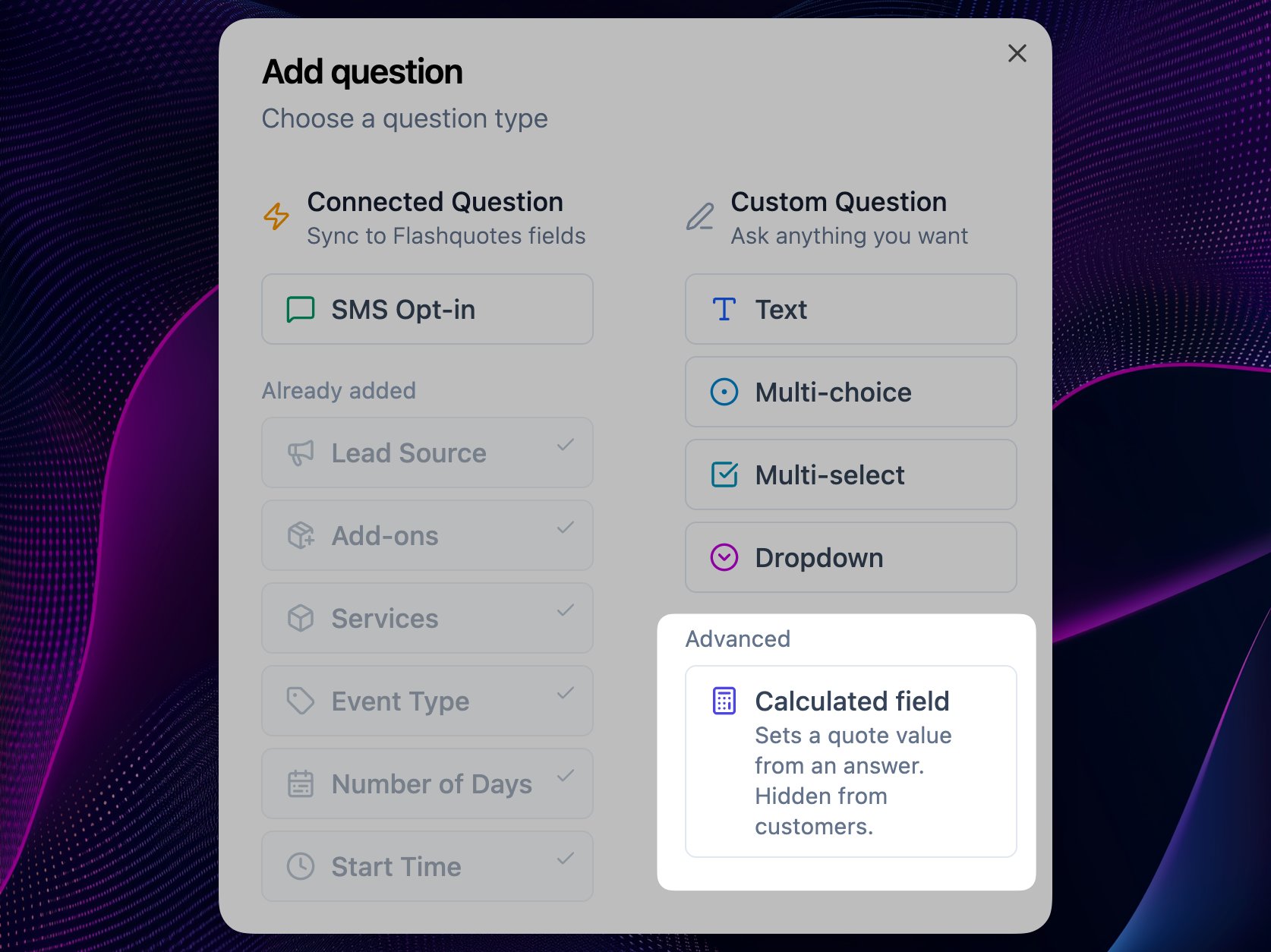
3
Pick the field to set
Open the field menu at the top of the settings panel and choose what this field fills in:
- Service duration, in half-hour steps from 0.5 to 24 hours
- Number of days, as a whole number from 1 to 366
- Special notes, as text
- Custom number or Custom text, with a field name you choose
4
Choose the answer it's based on
Under When, pick the question to check. You can use guest count from the staffing calculator, or any number, text, multiple choice, or dropdown question on the form.
5
Add your conditions
For each condition, choose a comparison, the answer to compare against, and the value to Set to when it matches. Click Add condition for more.
6
Set the fallback
Enter a value in Otherwise, set to. It’s used when no condition matches, or the customer leaves the question blank.
7
Test it and save
Open Test it, enter a sample answer, and check the result. Then click Save calculated field.
Example: more days for bigger events
Say your events run one day, but anything over 80 guests needs two.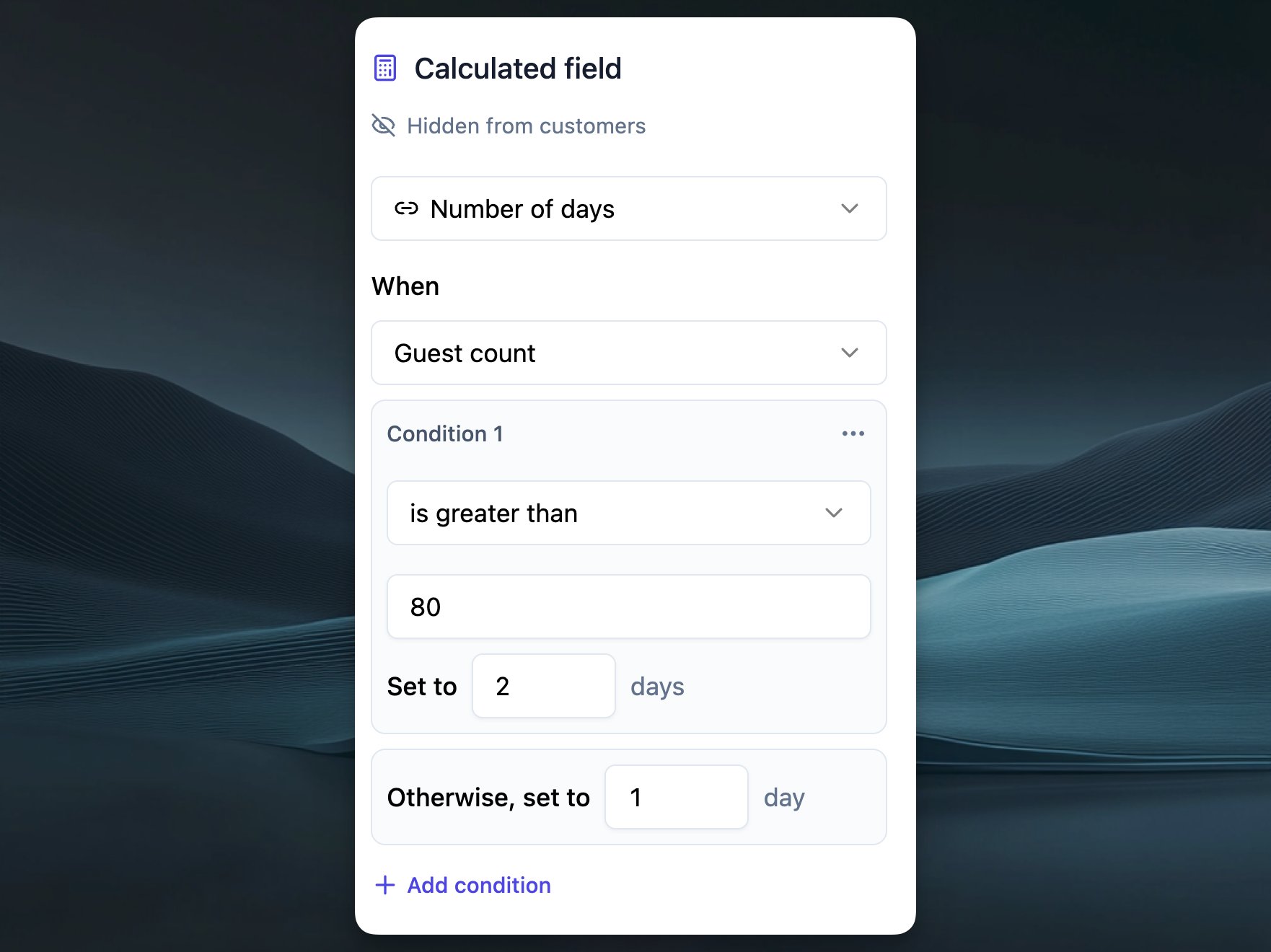
- Choose Number of days as the field
- Under When, pick Guest count
- Add a condition: is greater than 80, Set to 2 days
- In Otherwise, set to, enter 1 day
How conditions work
Number answers (like guest count) can be compared with is equal to, is not equal to, is greater than, is at least, is less than, or is at most. Text and choice answers can be compared with is or is not. For multiple choice and dropdown questions, you pick from that question’s options. When more than one condition matches, the most specific one wins. For example, with is greater than 80 and is greater than 150, an answer of 200 uses the greater than 150 value. If two conditions overlap and neither is more specific, Flashquotes asks you to fix them before saving.If the source question is on a page the customer never sees, or they leave it blank, the field uses your Otherwise value.
Things to know
- Customers never see calculated fields. They show as “Hidden from customers” in the editor and are skipped on the live form.
- One source per field. If another question already sets the field you picked, the editor tells you which one. Delete that question first, or pick a different field.
- Service duration and the staffing calculator. To set service duration with a calculated field, turn off Ask for service duration in your staffing calculator settings.
- Custom fields are saved with the lead’s other form answers.